Studio builds
Turn your iPhone into a video podcasting tool with this beginner's guide. Get setup tips, comparisons of super affordable microphones, and video quality enhancements for high-quality podcast episodes.
Some links in this story are affiliate links. If you buy through them, we may earn a commission at no extra cost to you.
Record on the phone when a self-contained kit fits the job.
Use Continuity Camera with a compatible Mac when you want a computer-based workflow.
Test the actual microphone path so you know whether the phone or the computer is recording the audio.
Are you wondering how to record a video podcast on your iPhone without investing in expensive camera equipment? If you’re looking for a simple and affordable solution, recording a high-quality video podcast is easier than you think with your iPhone.
In this guide, I’ll walk you through two different methods to record a video podcast on your iPhone.
One is to record your video podcast directly on your phone.
Two is to use your phone as a webcam.
I’m going to demonstrate both ways so you can see what results I get.
Plus, if you're concerned about the audio, which you should be because this is a video podcast and audio is super important, I will test four different microphones with the iPhone to see which one sounds the best.
The built-in microphone in your iPhone.
The Maybesta wireless microphone, which is very affordable.
And the Wireless ME from RØDE.
And finally, the Shure MV7.
Lastly, I will reveal the final result and record a video podcast on my iPhone for an episode of my Content Jefe podcast.
This is the simplest and most affordable way to start a video podcast so NO MORE EXCUSES! You can record a video podcast on your iPhone today.
By the end, you’ll have everything you need to get started with video podcasting using just your iPhone.
I help students and clients produce exceptional video podcasts, and I'm excited to do that with you in this guide.
If you’re a business owner, this is a great time to:
start a podcast to educate prospects about what you do
become a trusted authority in your industry
connect with your customers
Here’s the thing: You’re all set to record your video podcast using your iPhone, which is great, but now comes the challenge of capturing good audio.
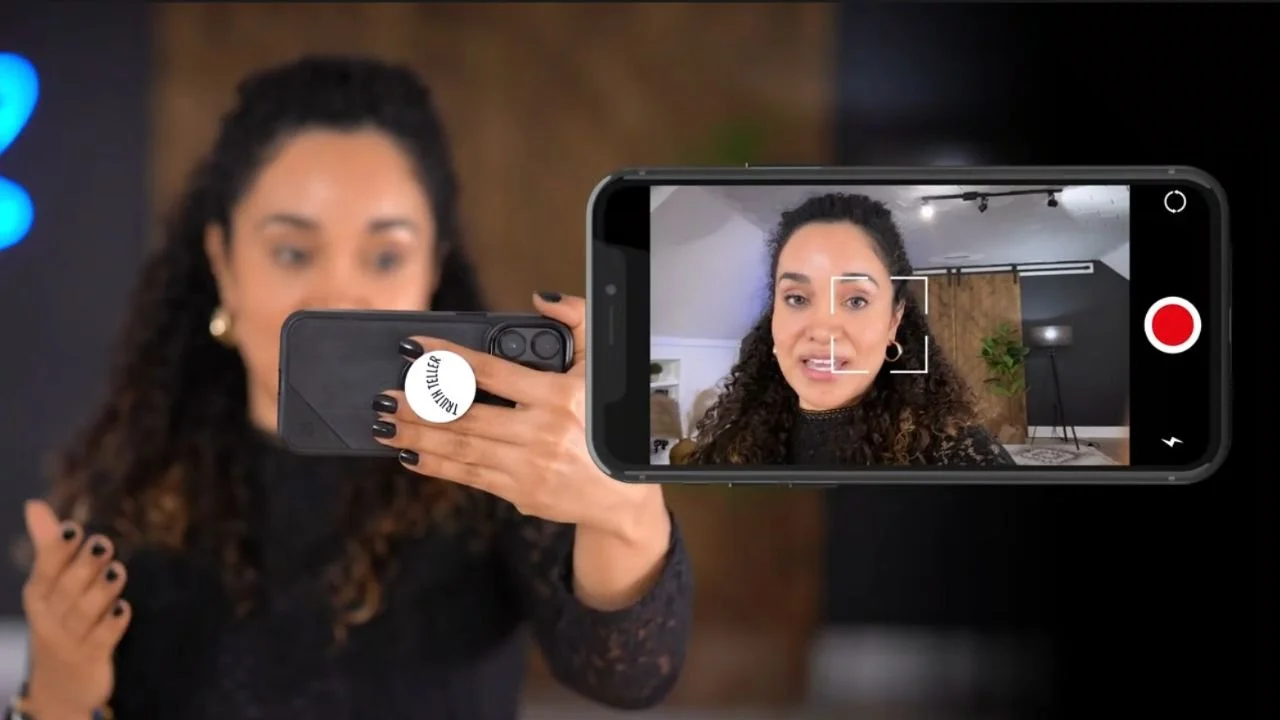
When recording an audio-only podcast, you’d typically position the microphone very close to your mouth to achieve clear, high-quality sound.
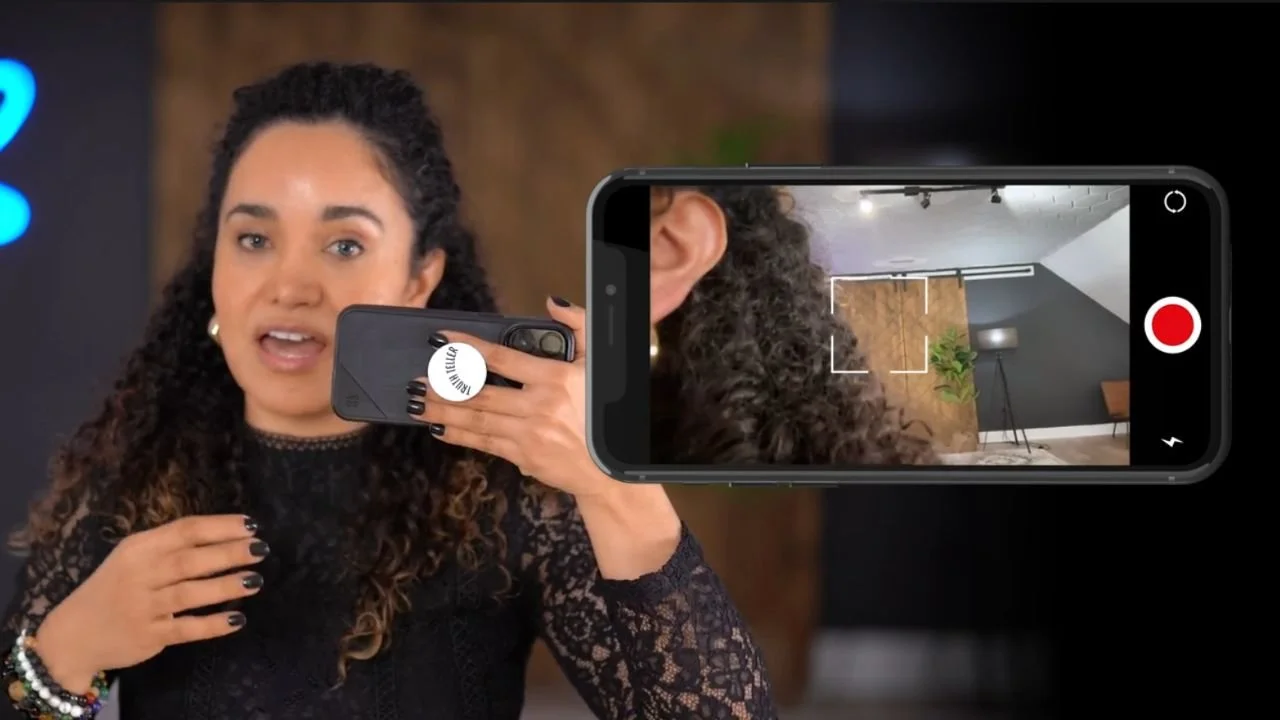
But if you do that with your smartphone’s microphone, the camera will only capture an awkward close-up of your ear and hair. That is just not a good shot!
To get a well-framed video shot, you’ll need to place your phone farther away, but that often results in poor audio quality, the farther the phone, the worse the audio.
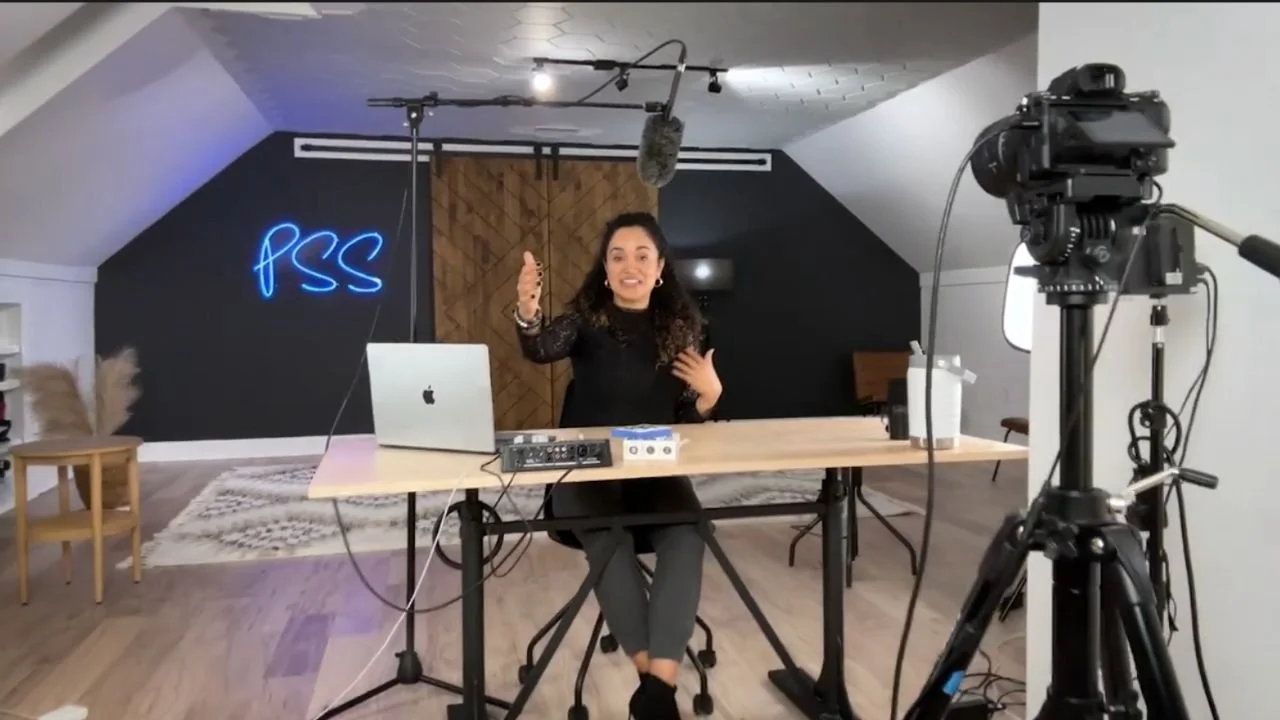
But this is a video podcast so I want to get the best possible audio and video.
So, what’s the solution to achieving both high-quality video and audio on a smartphone?
One solution is a wireless microphone.
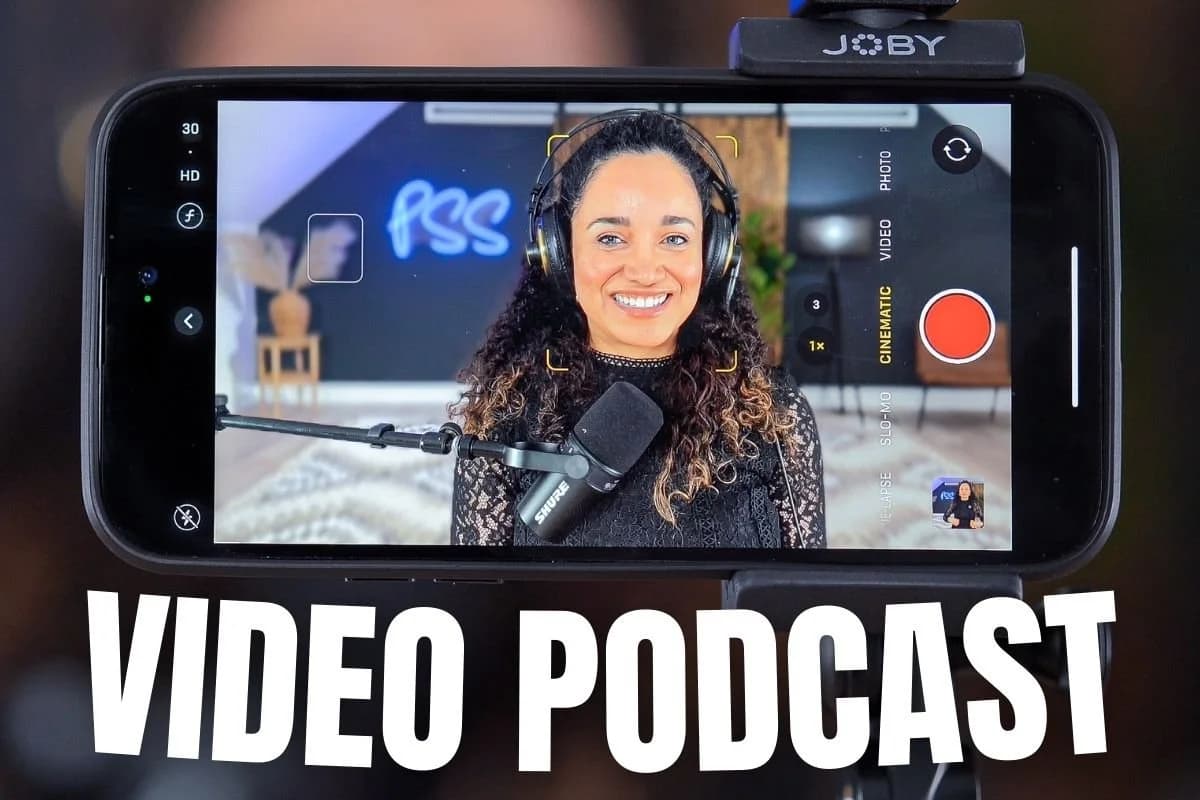
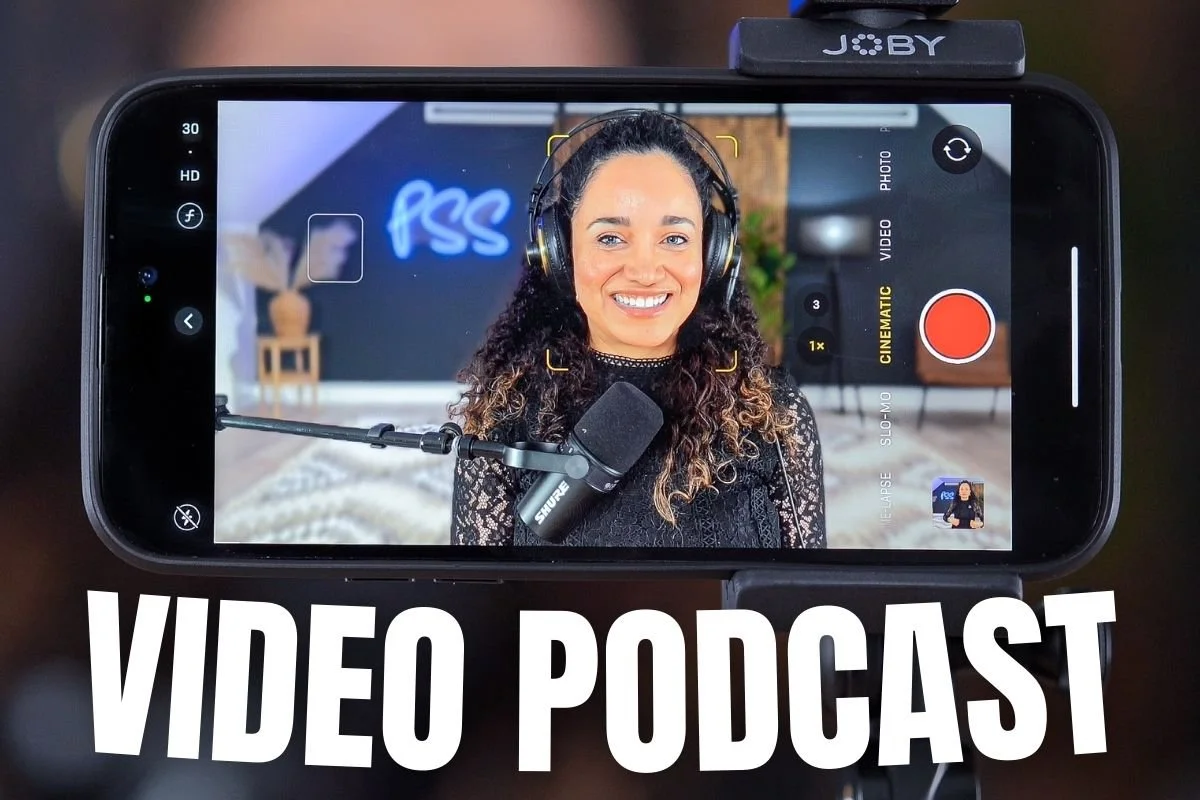
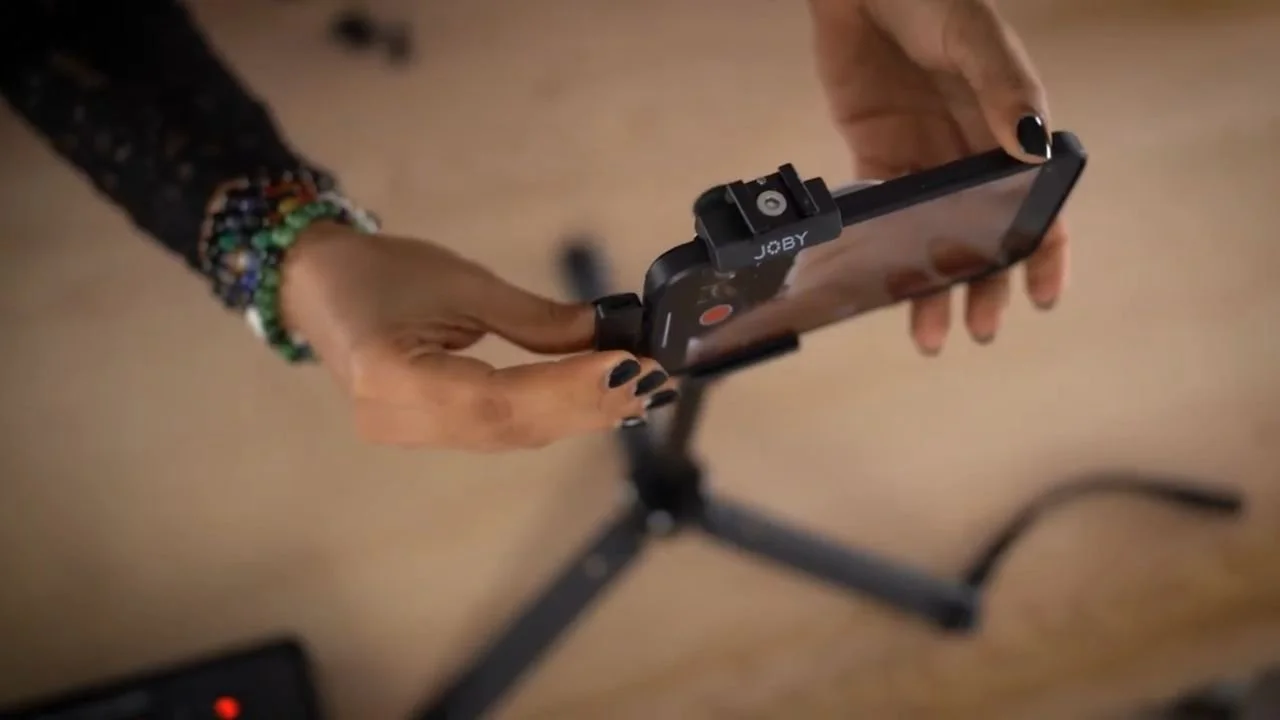
First, you’ll need to mount your smartphone onto a tripod or desk stand. I’m using my iPhone 14 and the Joby phone stand for my setup.
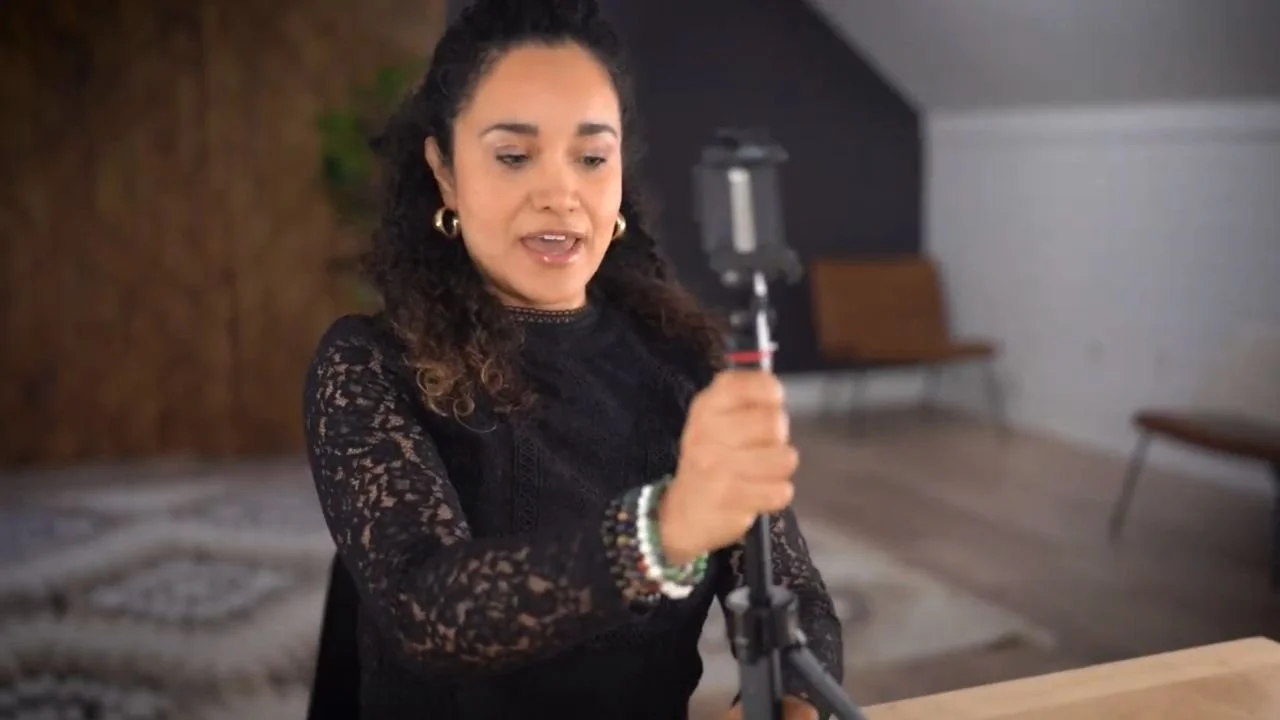
Second, open your phone’s camera app and switch to video mode. Then select cinematic to achieve a slightly blurred background.
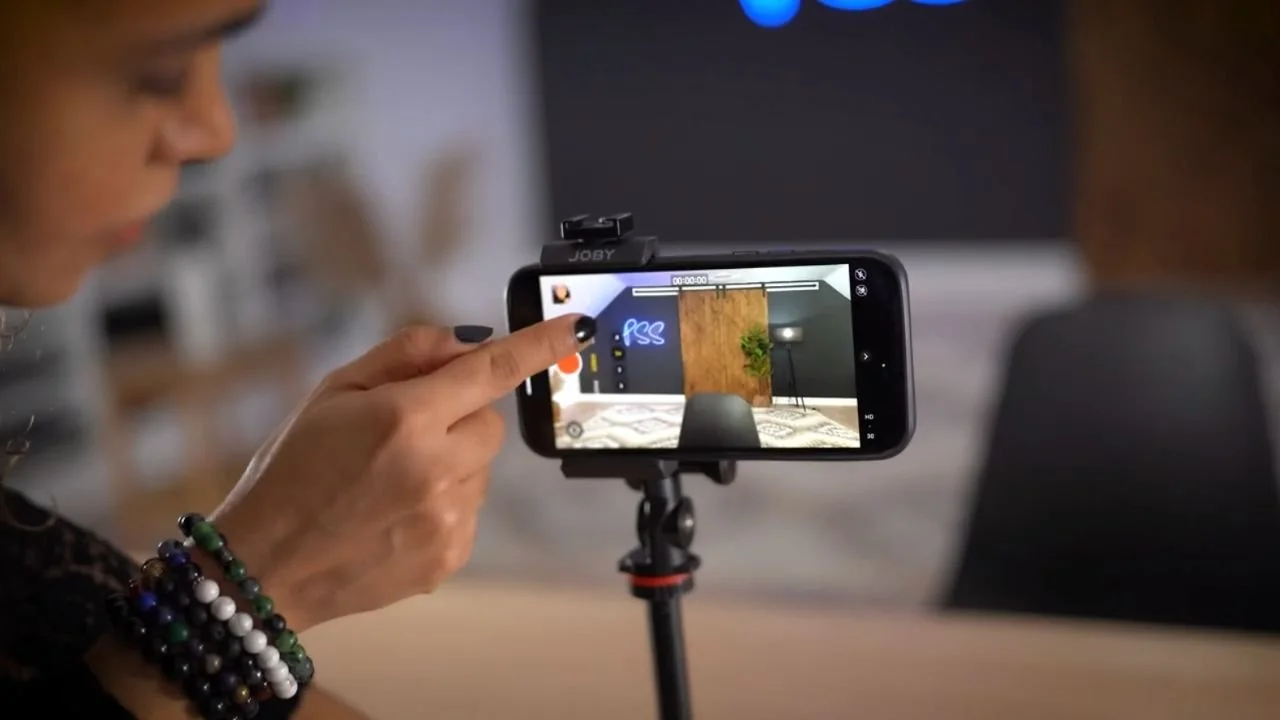
Okay, so here we are. This is my video podcast setup.
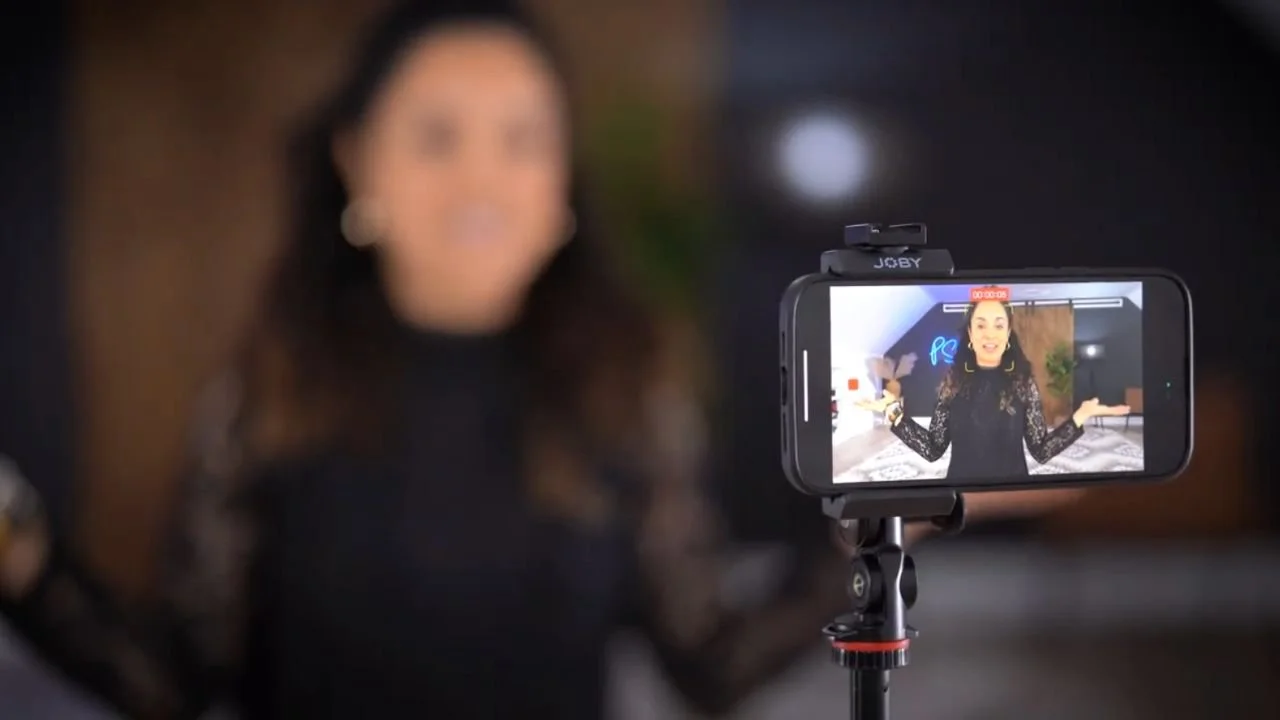
I'm using only my iPhone 14 and the Joby phone stand. The audio you can hear in this demo video is coming from the iPhone 14. I haven't plugged in any microphones yet.
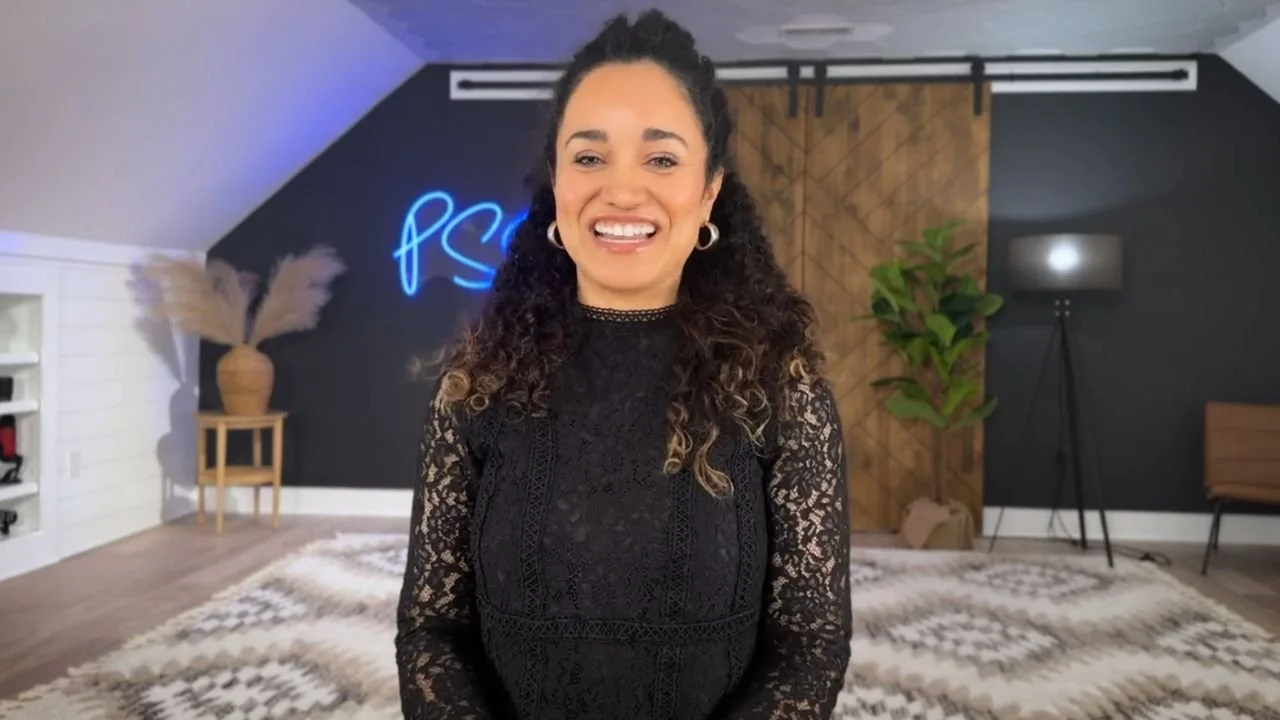
I would say that it looks pretty good.
Coming up, I’m gonna compare the audio from the iPhone’s built-in microphone with the audio from 3 different external microphones to see how they sound. I'm excited!
Now let’s test the Maybesta wireless microphone, the cheapest wireless microphone I could find on Amazon.
And here it is, this is the microphone.
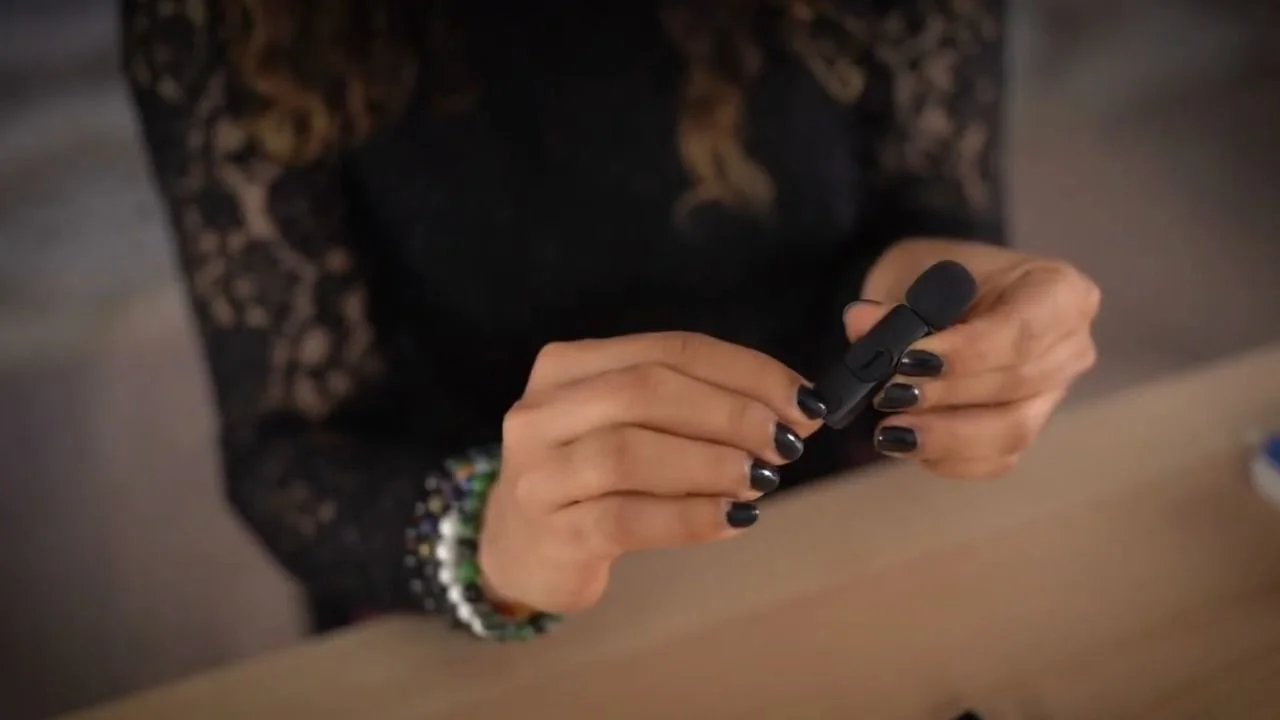
And here’s the receiver that plugs into my iPhone.
One cool thing about this little mic is that it comes with these little clippy things, so you can clip it to your top. This means you’re free to talk and move your hands.
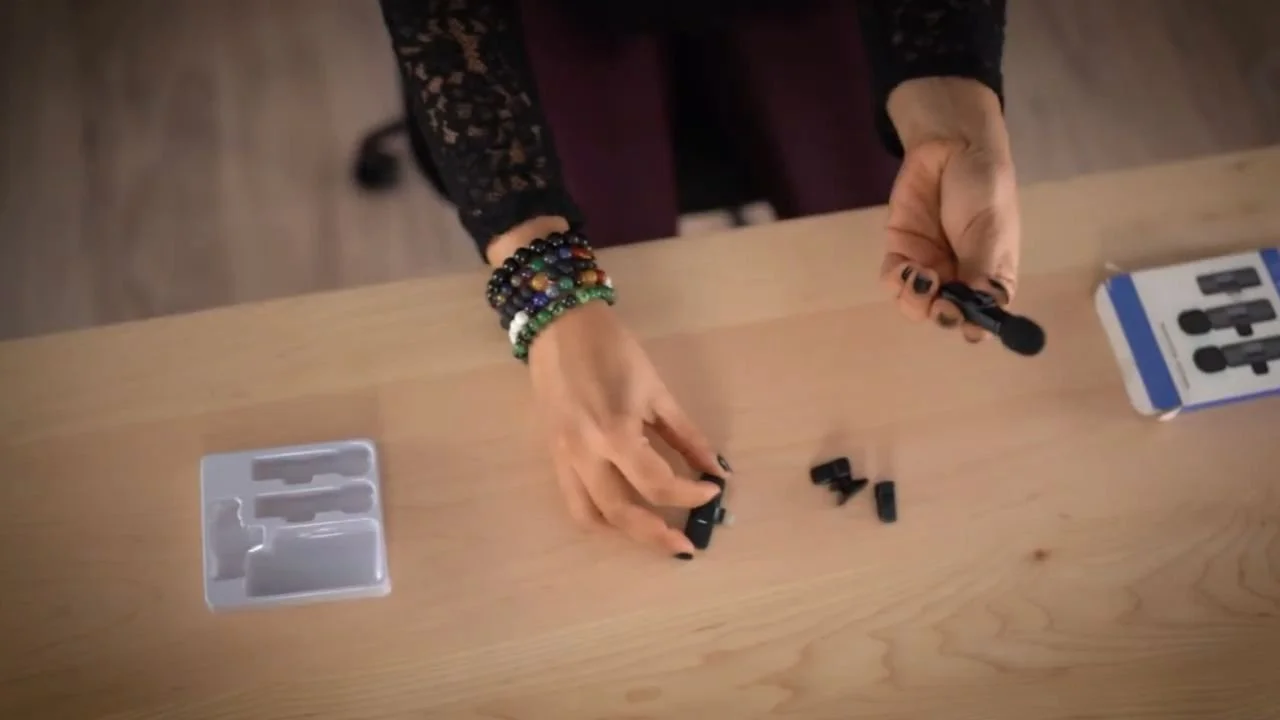
If you record your podcast with a co-host or guest, this is a great option to test because it comes with two microphones and a receiver, meaning both of you will be recorded on the iPhone.
As I said, this is one of the cheapest microphones I could find on Amazon, but it had good reviews. That's why I got it.
And I think it looks really cute.
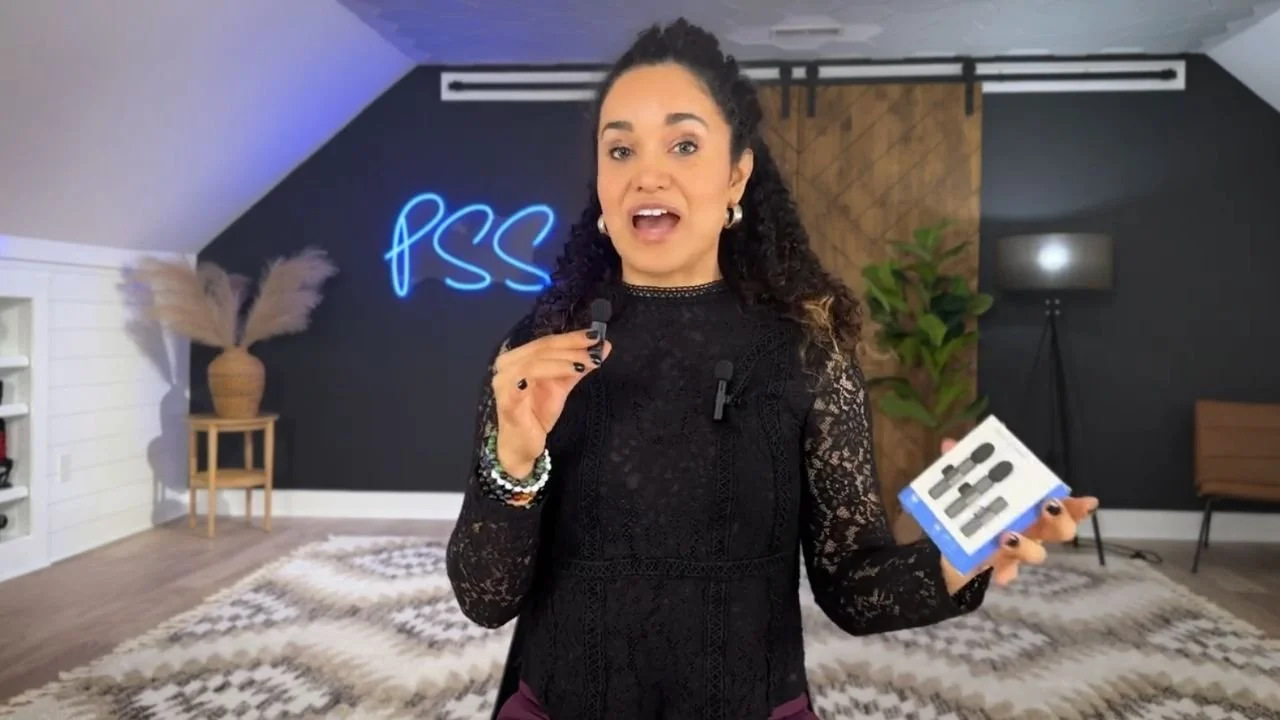
Listen to the audio in this video demo to hear how the audio sounds with the Maybesta wireless microphone.
At PSS Creative Media, we're very picky when it comes to the audio so we’ll see if it passes the audio test, especially for Studio Steve. I don't think he's going to like any of it.
Now I'm going to unbox the Wireless ME by RØDE. RØDE makes really good microphones.
Look at my unboxing skills. LOL. Be gentle.
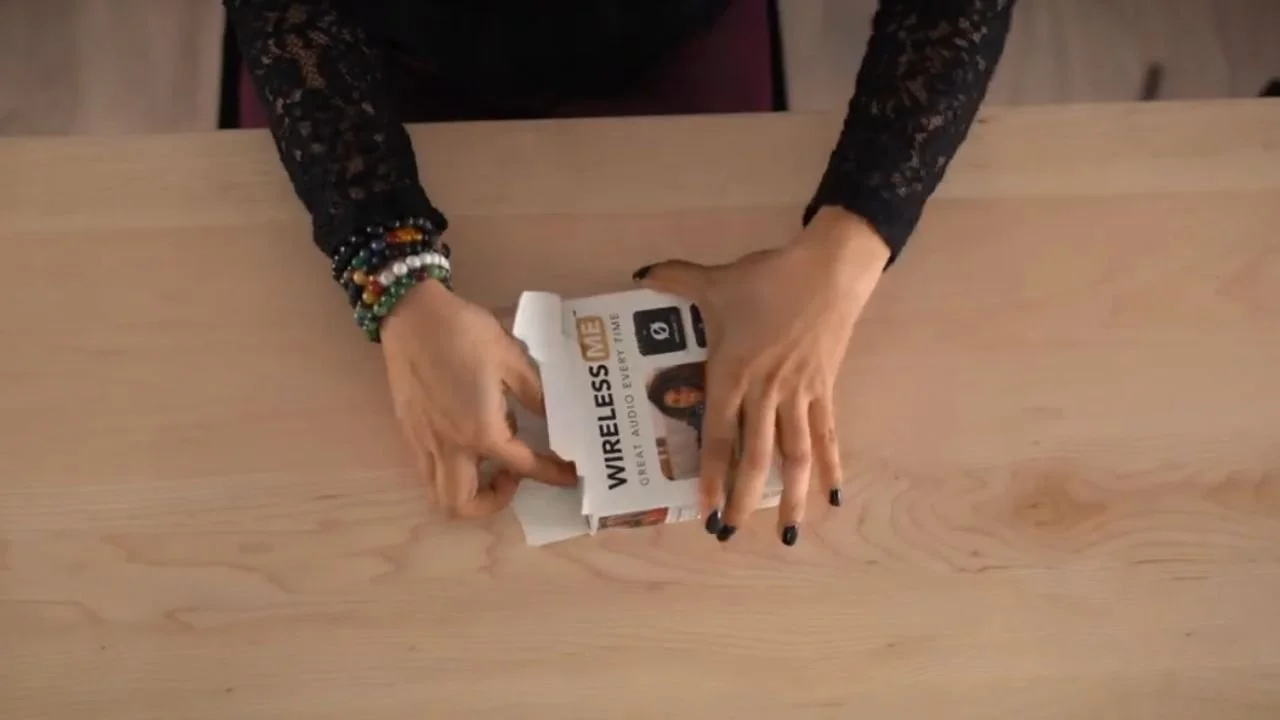
Oh! What is this? Mmm. It comes with this furry windscreen, AKA a DeadKitten (or WindJammer, as they are more frequently called), a smaller type of DeadCat windshield that slips onto the microphone itself.
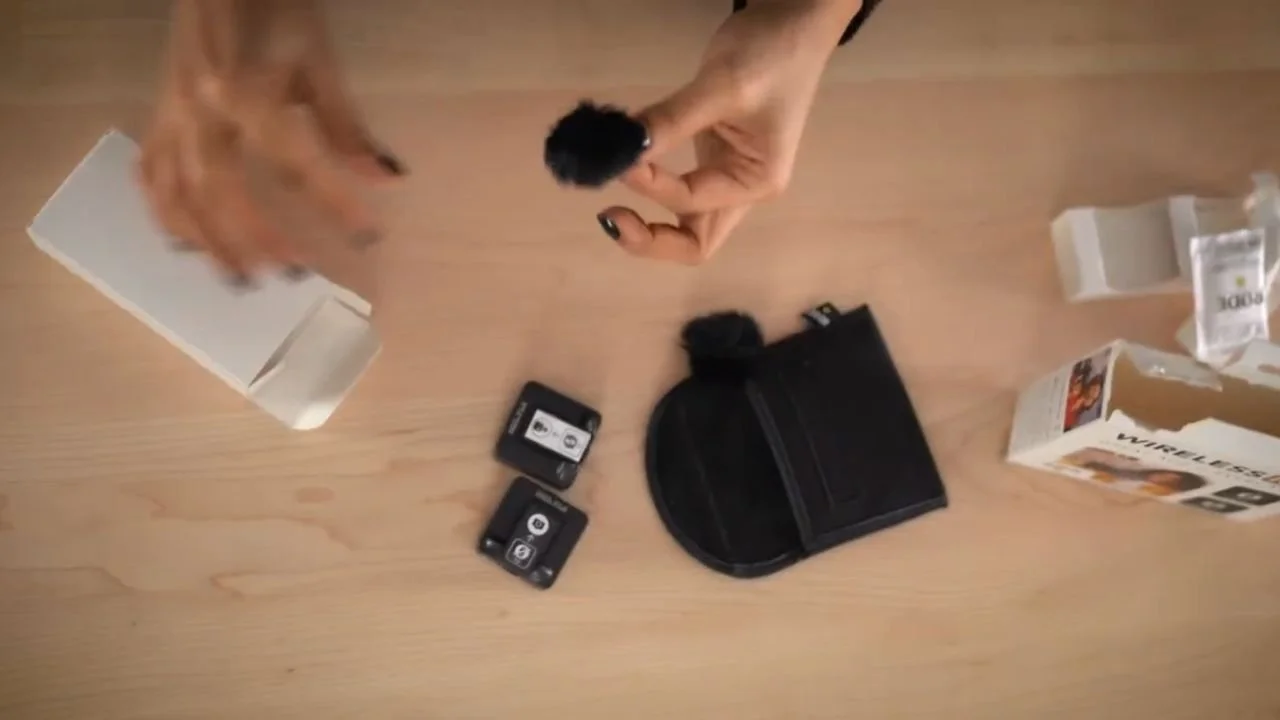
NOTE: We had to wait a bit to test the Wireless ME mic because it doesn’t come pre-charged.
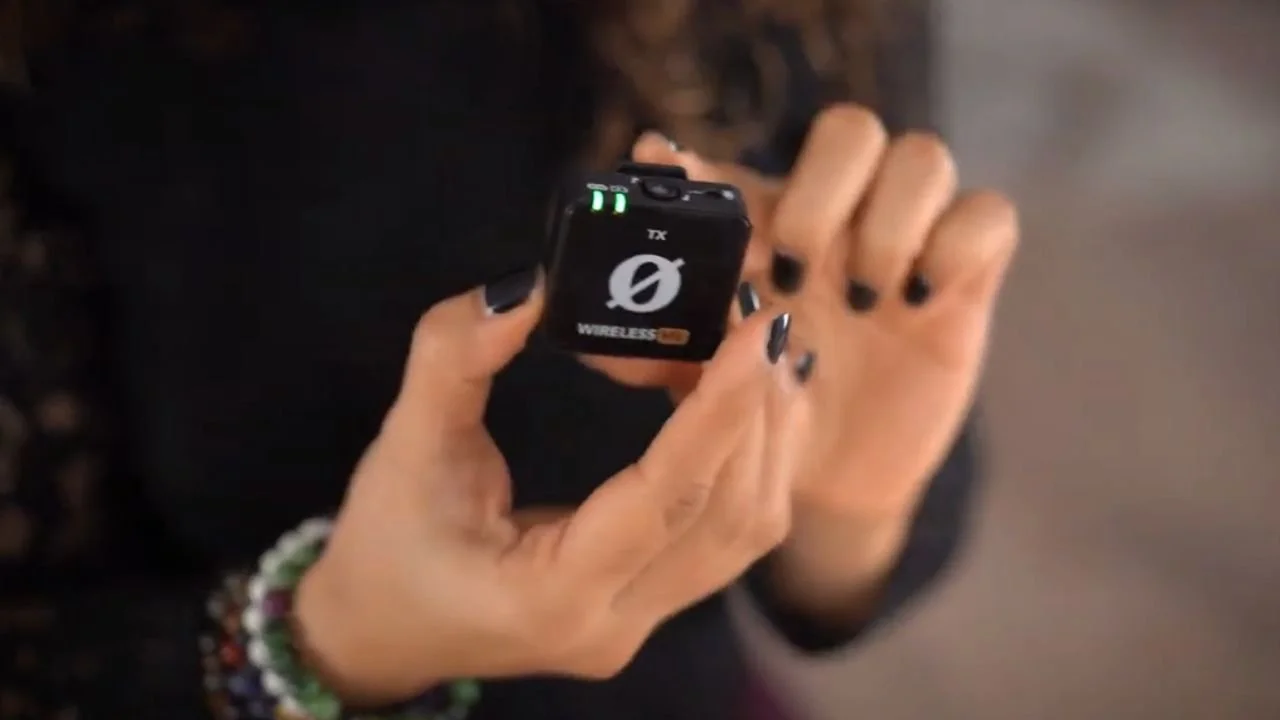
Here is the receiver connected to my iPhone, so it's ready to record.
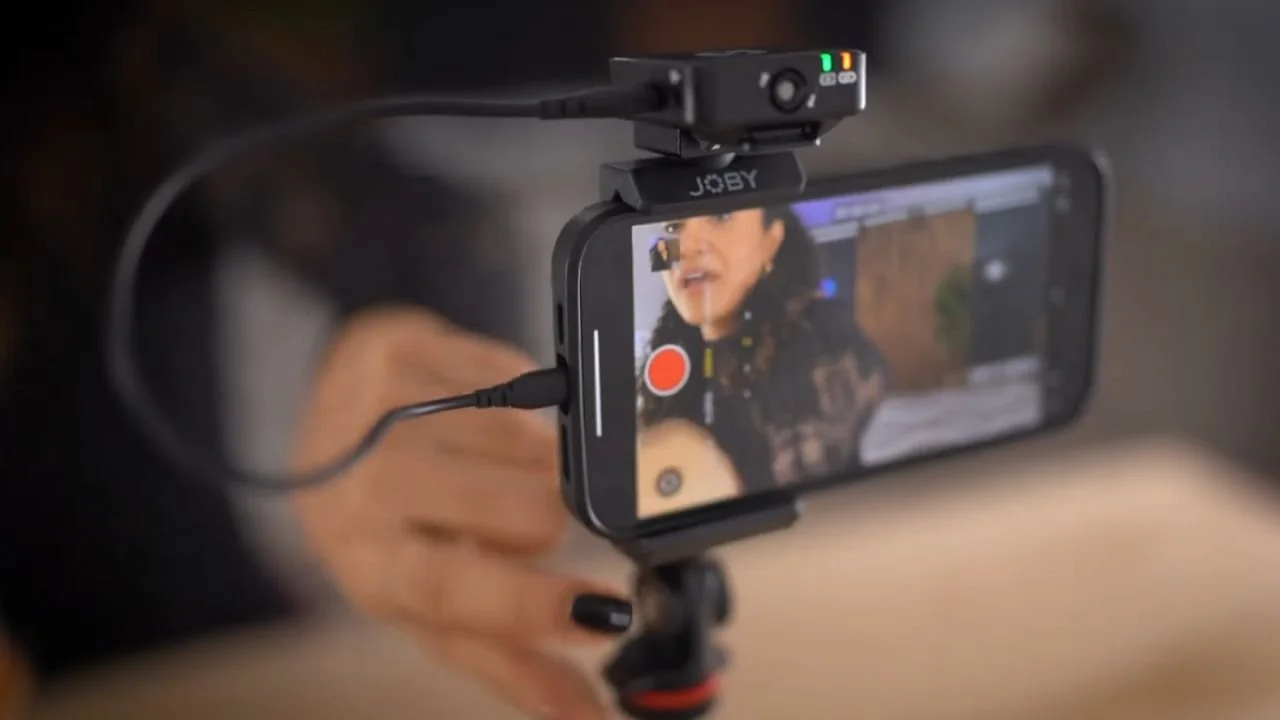
You’ll have to download an app and in that app, you can play with the settings a little bit more.
The receiver is also a microphone, which is pretty cool because somebody who’s helping you record your videos can talk and be recorded, too.
It has a clip on the back so I can clip it on my blouse.
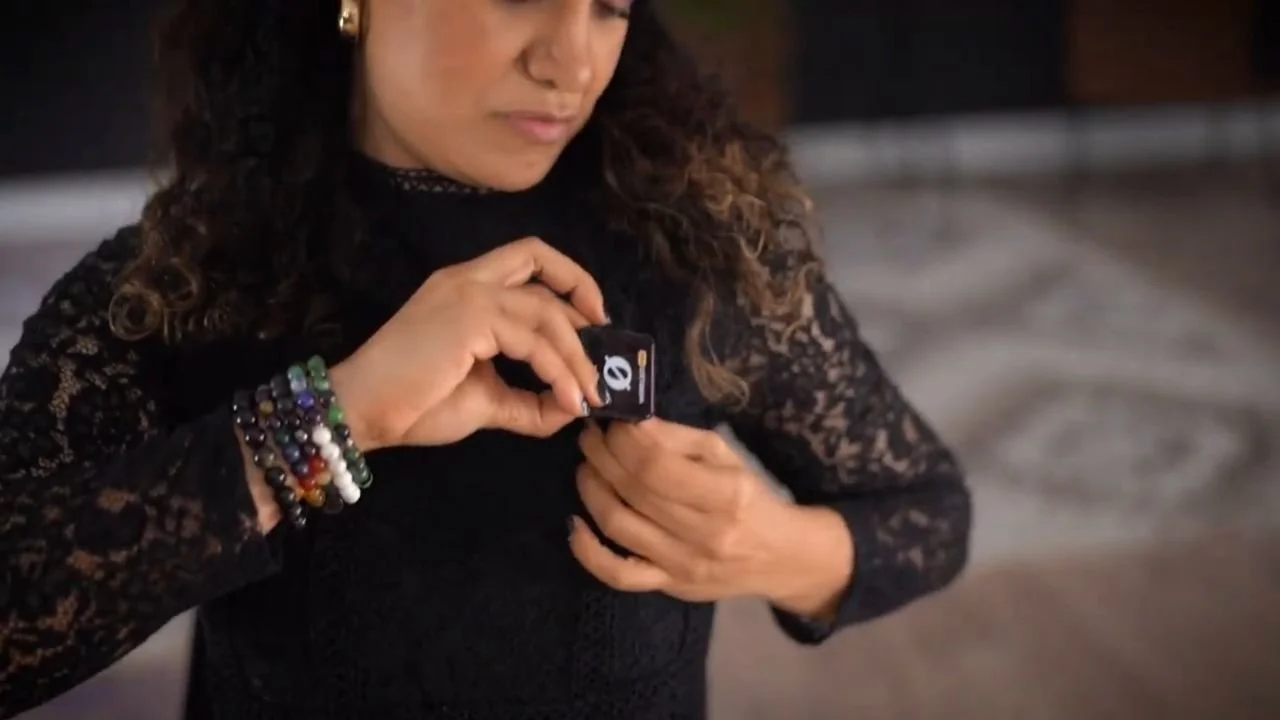
Now I'm recording using the RØDE Wireless ME microphone. You can hear how the Wireless ME audio sounds in this video demo.
I love it! I think it does a pretty darn good job of capturing audio.
I’m using the Shure MV7 USB microphone with my laptop for this test.
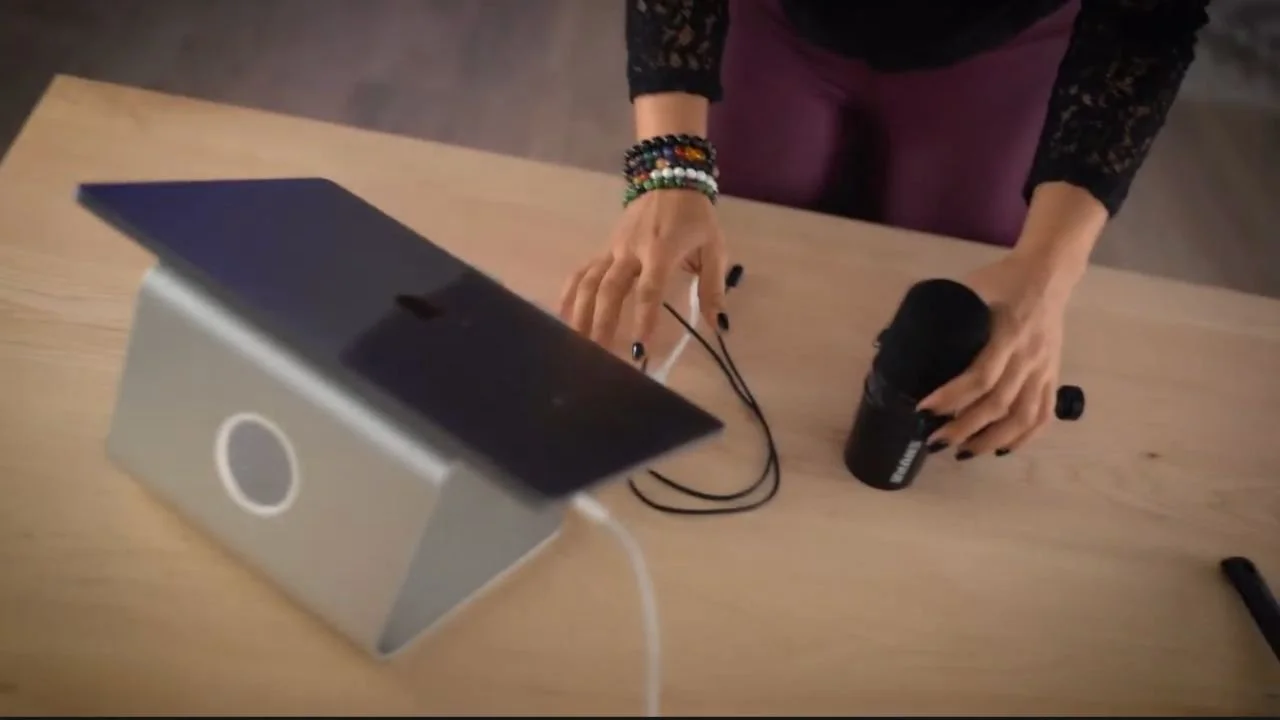
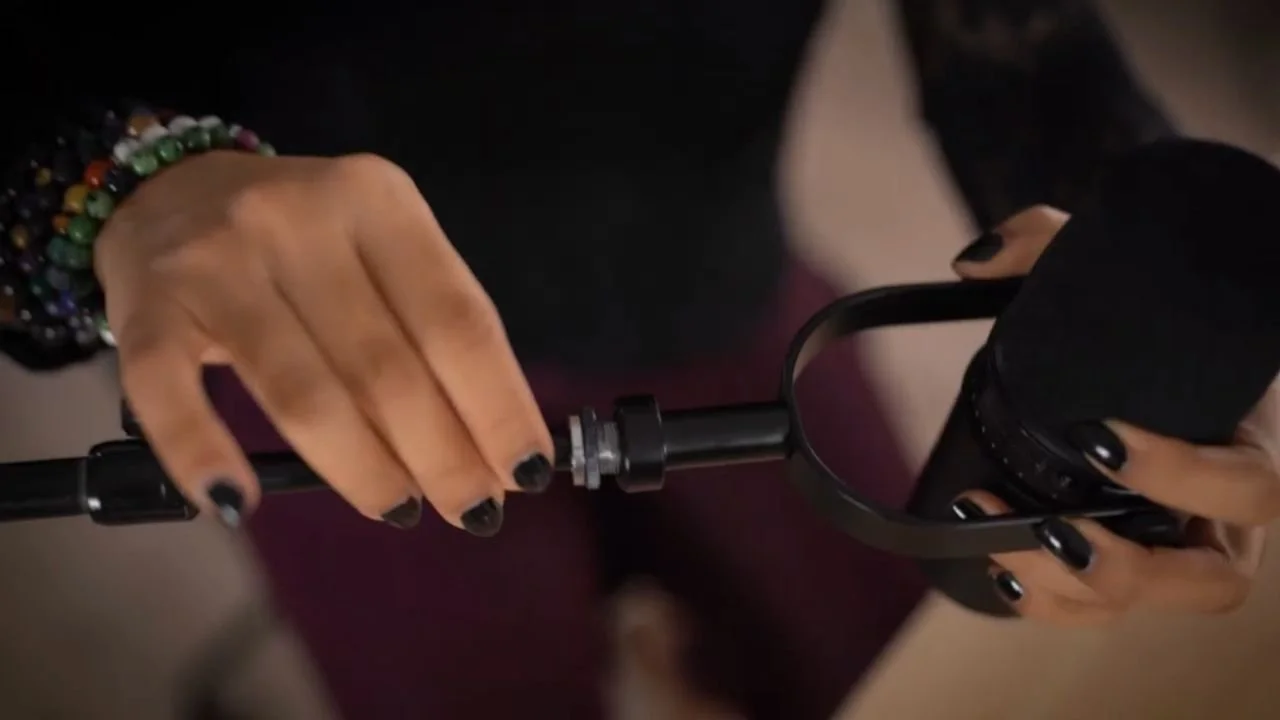
First, mount the mic onto a stage stand.
Here’s the trick to screwing a microphone onto the boom arm of a stage stand: hold the microphone up to the screw at the end of the arm, and with your other hand, rotate the pole that’s inserted inside the arm to screw it into the microphone. Don’t turn the microphone, turn the insert inside the boom arm.
Second, plug the MV7’s USB cable into your laptop.
In this setup, I am NOT using the iPhone to record the audio or video. Instead, I’m using the iPhone as a webcam.
To use the iPhone as a webcam, you have 2 options:
download a webcam app
use the Continuity Camera feature that syncs your iPhone with your Mac computer, this is the option I'm using in this demo
Continuity Camera requires compatible iPhone and Mac models and software, appropriate account and device settings, and a supported application. Follow Apple’s setup requirements before relying on the wireless connection.
The good thing is that you can use your phone with any recording software on your computer.
Even if you are recording your podcast remotely, you can use your phone as a webcam with solutions like:
SquadCast by Descript
While recording a video podcast using screen recording software like ScreenFlow and Camtasia is possible, I do not recommend it.
My favorite recording software is Descript. What I like about Descript is that I can use it to easily record and edit my video podcast.
The audio and video files will be saved virtually in Descript, not on my iPhone, making file management super easy.
First, open Descript on your computer, and in the upper right corner, click New Project > Video Project.
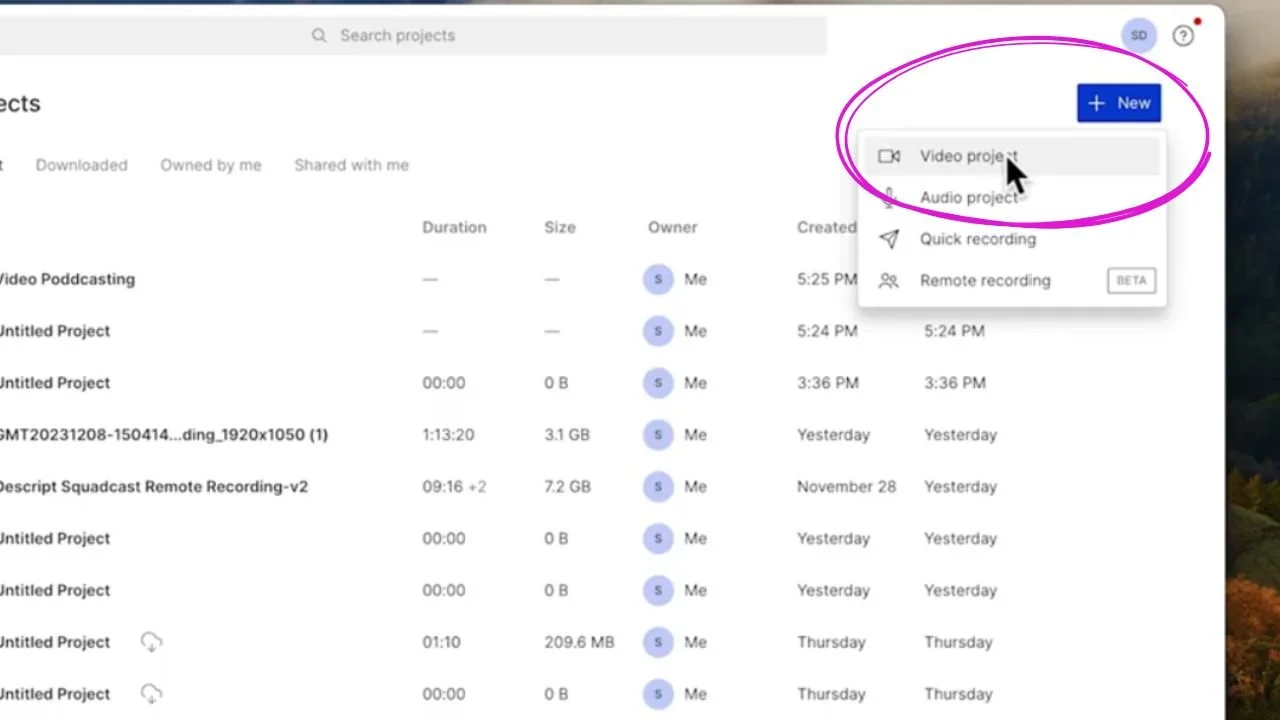
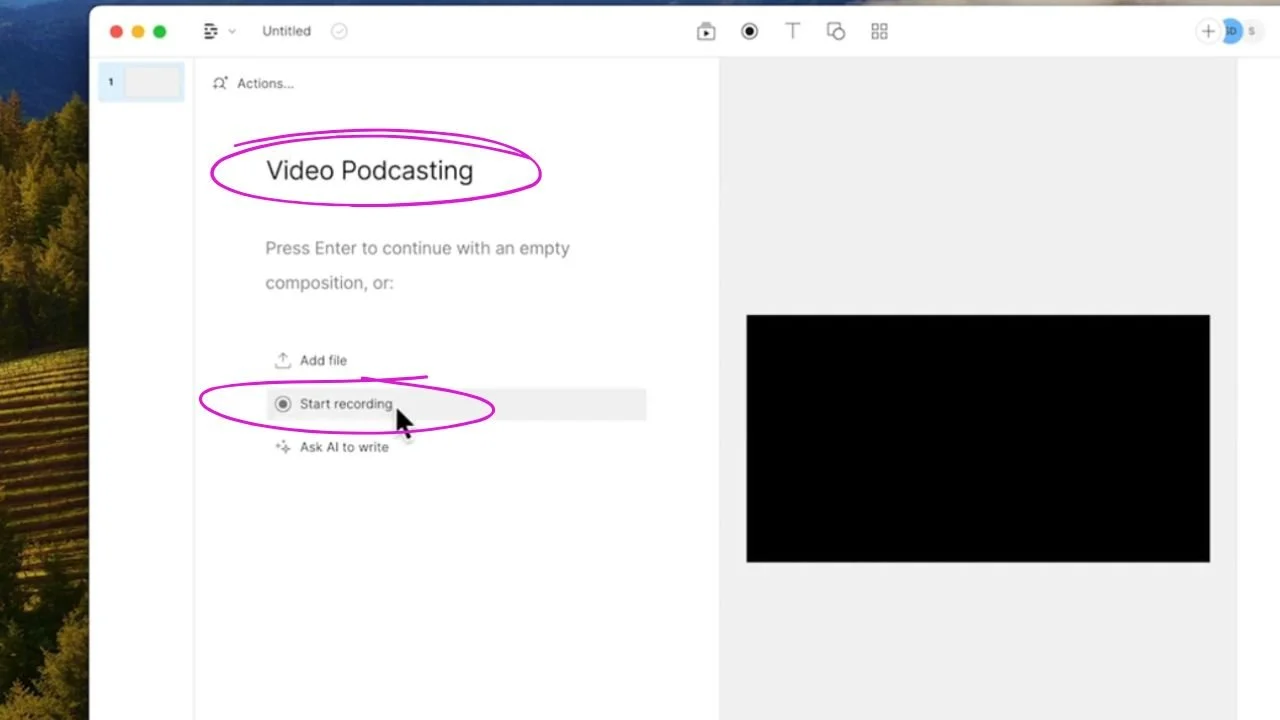
Give the project a title. Let's type “Video Podcasting” for this example.
Next, click Start Recording.
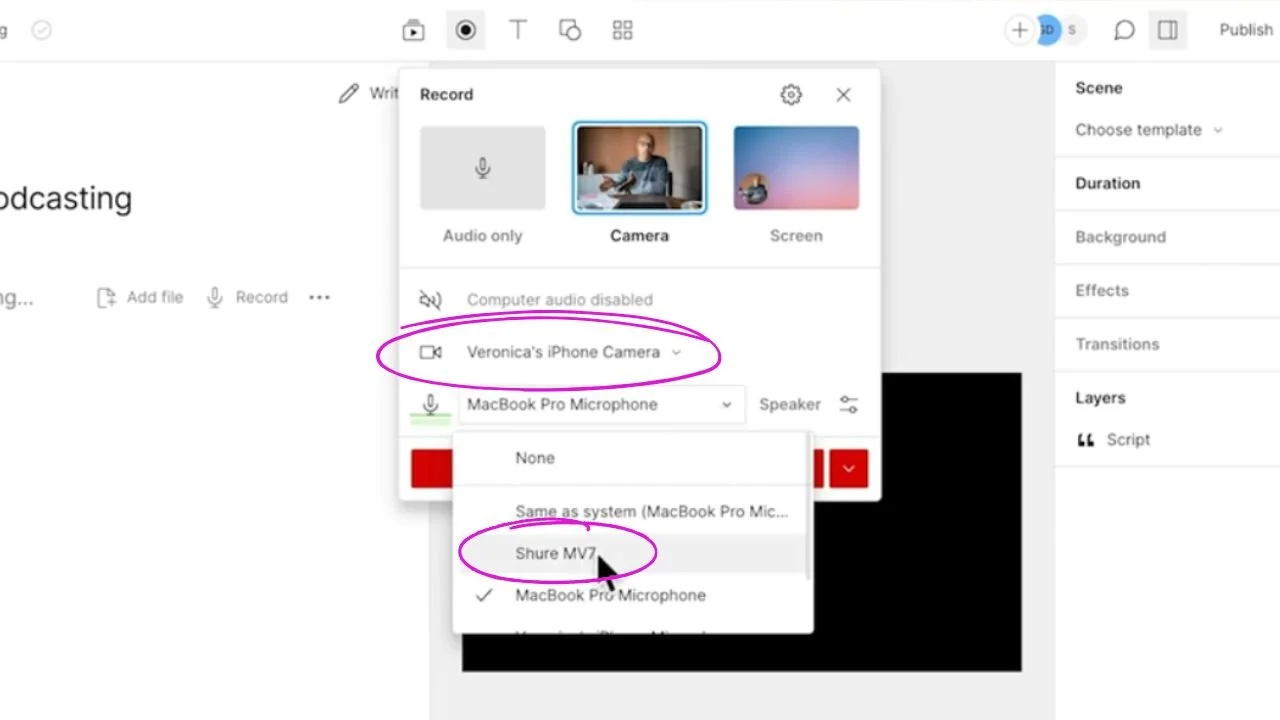
Here you can see that the camera from my iPhone just popped up because it's connected to my computer via Apple’s Continuity Camera feature (as discussed in Step 2).
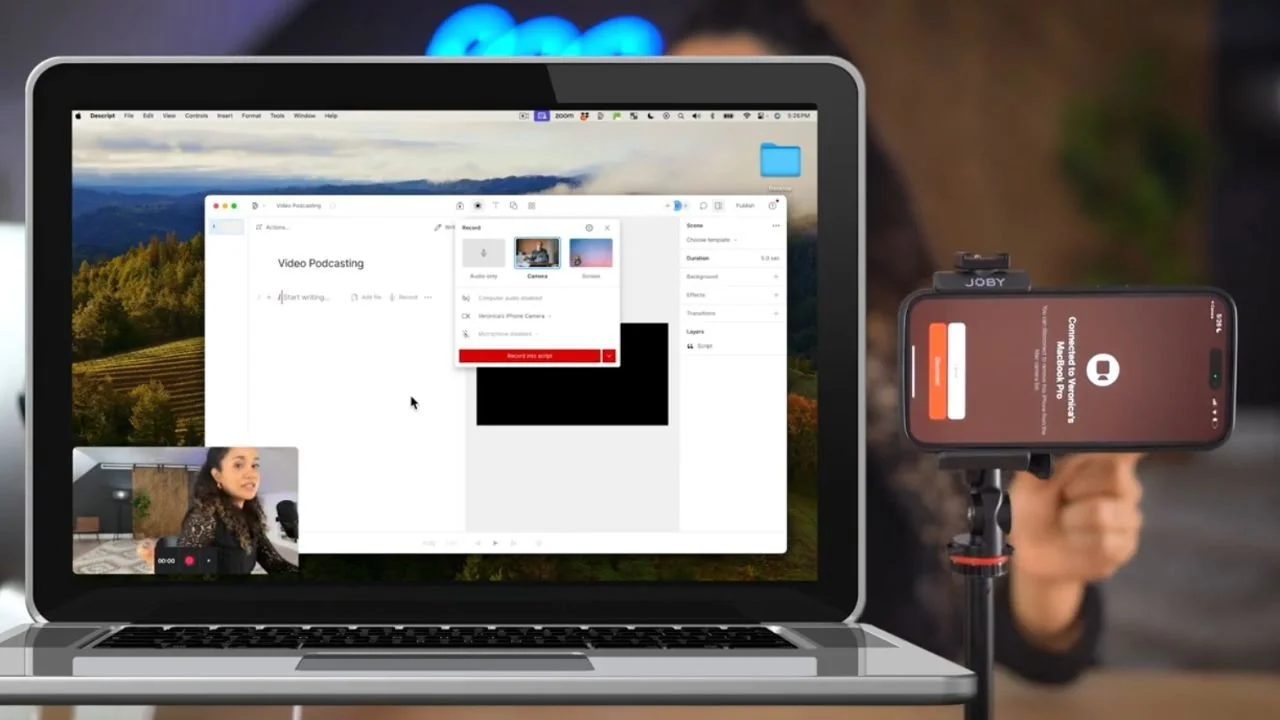
From the drop-down menu, you can choose your camera and the Shure MV7 microphone to capture your audio.
You may notice that the background no longer has the fancy blurred look (a.k.a. bokeh) we turned on earlier using the ‘Cinematic Mode’ in iPhone’s native camera app. That's because I'm using my iPhone as a webcam.
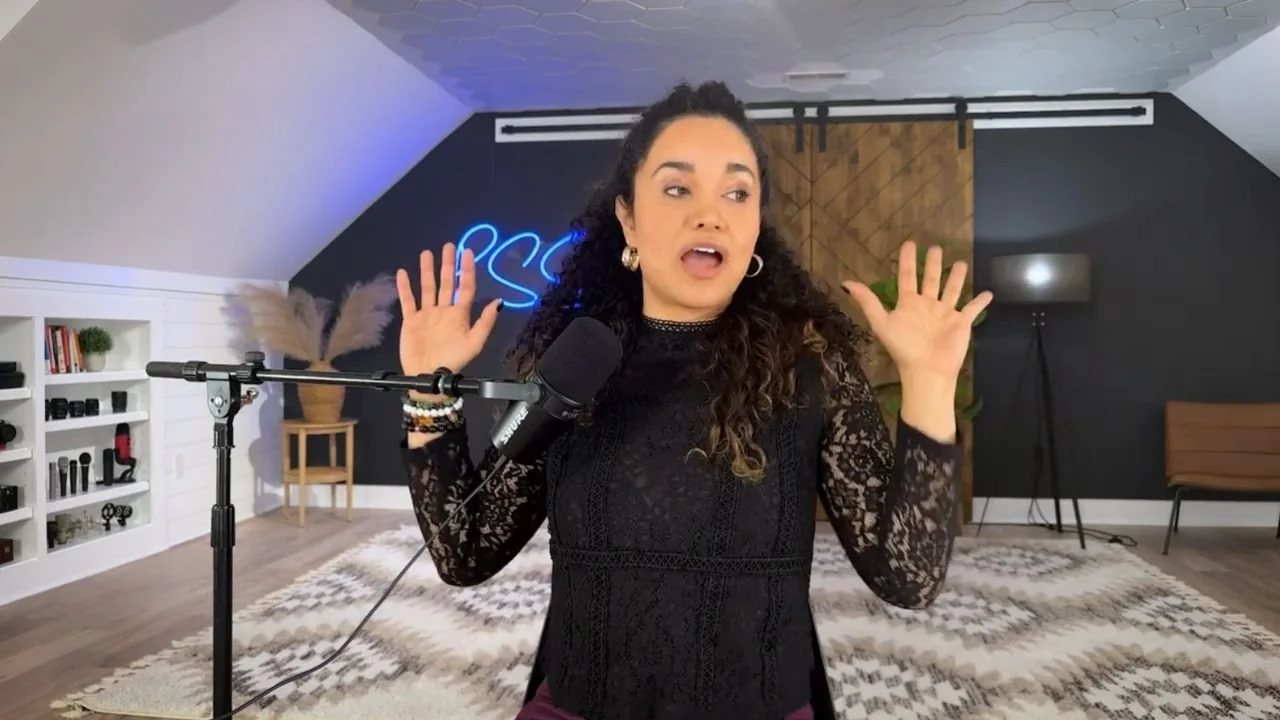
Unfortunately, Cinematic Mode itself isn't available directly within Apple’s Continuity Camera; it can only be used in the iPhone’s native Camera app. So while you can enable Portrait mode to blur your background in Descript, true Cinematic Mode is not accessible when using your iPhone as a webcam.
Apple’s Continuity Camera lets you use your iPhone as a webcam on your Mac, offering options like "Studio Light" and "Portrait" modes to enhance your video quality when using compatible applications, such as Zoom, FaceTime, or Descript.
Here's how these features work and how to access them:
1. Using iPhone as a Webcam in Descript
Open Descript and select your iPhone as the camera source (it should appear if your iPhone is set up for Continuity Camera).
Then use Control Center on your Mac to activate Studio Light and Portrait mode as needed for a well-lit, background-blurred look.
2. Studio Light and Continuity Camera
Studio Light is a setting that improves lighting by brightening your face while subtly dimming the background, ideal for creating a well-lit appearance.
You can activate Studio Light from within Control Center on your Mac. When using your iPhone as a webcam, open Control Center > Video Effects and select Studio Light if available.
3. Getting a Blurry Background: Cinematic Mode
As stated above, Cinematic Mode itself isn't available directly within Continuity Camera; it can only be used in the iPhone’s native Camera app.
To achieve a blurry background effect (similar to Cinematic Mode), use the Portrait setting from Control Center on your Mac. Go to Control Center > Video Effects > Portrait to blur the background.
By using Studio Light and Portrait together, you can replicate some cinematic effects without true Cinematic Mode.
As a final treat, I compared each microphone by repeating the same sentence so you can be the judge and decide which one sounds the best to you.
I had a lot of fun testing all of these microphones with my iPhone, so I hope this gets you inspired to start your video podcast.
You don't have to wait until you have a fancy camera.
As promised, I recorded one of the episodes for my video podcast, Content Jefe, using my iPhone. You can watch that episode below and I hope you like it and enjoy it.
Starting a video podcast DOESN’T have to mean investing in expensive cameras or complicated setups.
As you’ve seen…
Your iPhone, paired with a few key accessories and the right settings, can deliver impressive quality that’s perfect for beginners.
Whether you’re using it directly or as a webcam through Continuity Camera, you can easily enhance your video quality with tools like Studio Light and Portrait mode and achieve professional sound with affordable microphone options.
So, no more excuses, if you’ve been dreaming of starting a video podcast, grab your iPhone and give it a try.
With the setup options and microphone comparisons I’ve covered here, you can get started ASAP!