Studio builds
Before you buy any camera for a multicam podcast or livestream, you need to answer one question: are you editing your own show or working with a dedicated editor? That single decision changes everything.
Some links in this story are affiliate links. If you buy through them, we may earn a commission at no extra cost to you.
A program recording keeps the live switching decisions.
ISO recordings keep the camera angles separate for a later edit.
USB bandwidth, recording resolution, and livestream resolution are different limits, test all three.
| Setup | What you keep | Who it suits |
|---|---|---|
| Computer switching | A switched program recording | Creators editing their own show |
| Better closeups | The same workflow with upgraded cameras | A focused image-quality upgrade |
| Separate camera recording | Program + individual angles when configured | A team rebuilding shots in the edit |
Watch the full video: https://youtu.be/MKecWPDa-aE
Before you buy any camera for a multicam podcast or livestream, you need to answer one question:
Are you going to edit your own show… or are you going to work with a dedicated editor (now or soon)?
That single decision changes everything, because it determines whether you should build a workflow around:
A “program feed” (your live camera switching gets baked into the recording), or
Isolated camera recordings (“ISOs”) (each camera is recorded separately so an editor can rebuild the show in post).
In this guide, we’ll walk through three complete multicam setups we recommend, from a budget-friendly starter workflow to a full studio/PTZ workflow, including what you get at each level and how the workflow actually functions.
Disclosure: Product links below are included for convenience and may be affiliate links.
Best for: DIY creators editing their own show, beginners learning multicam, anyone prioritizing simplicity
Core idea: 3 cameras → one computer → switch inside OBS (no hardware switcher)
Best for: DIY creators who want noticeably better closeups + more control, still no switcher
Core idea: Better sensor(s) where it matters most (closeups) while keeping the same simple workflow
Best for: Teams working with an editor, shows built for repurposing at scale
Core idea: Hardware switcher records each camera in 4K (ISOs), while you still livestream cleanly
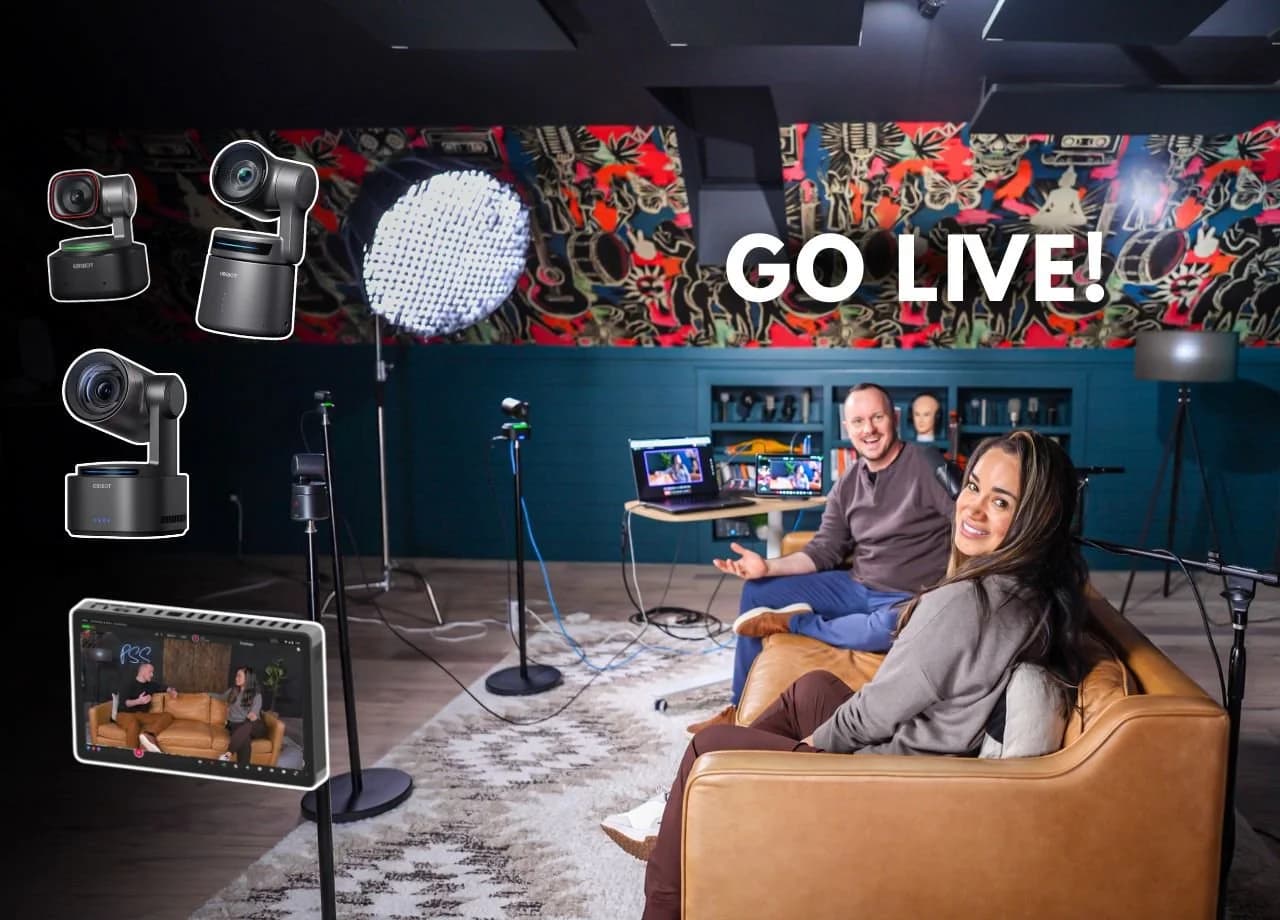
Setup 3, Studio / PTZ Multicam (High-End), original studio demonstration
You switch cameras live inside software (OBS), and that switched output is what gets recorded.
Pros
Fastest path to publishing
No complex file management
Editing is dramatically reduced (because you already “edited” live)
Cons
If you forget to switch cameras, that mistake is “printed”
You can’t fully redo camera switching later
Each camera gets recorded as its own file (usually on the switcher), so an editor can rebuild the show later.
Pros
Maximum post-production control
Best for clips, vertical content, and multi-platform repurposing
Editors love you forever
Cons
More gear + more complexity
Only worth it if you’ll actually use that post flexibility (i.e. you have an editor)
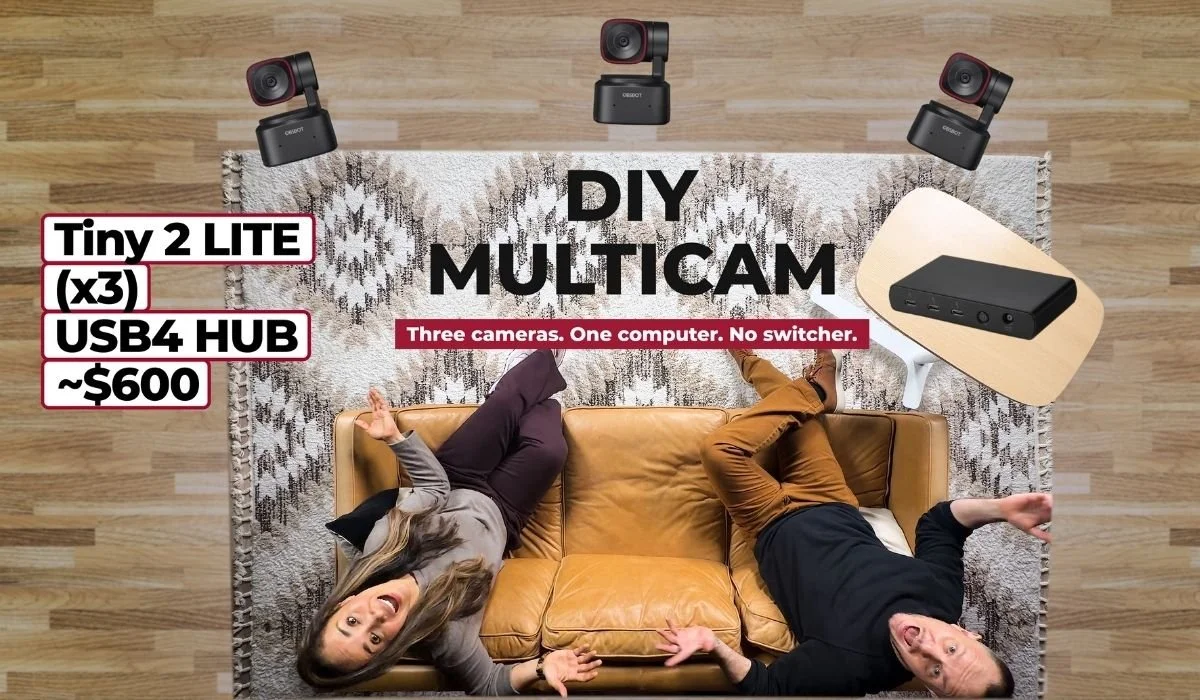
This is the simplest true multicam workflow that still feels professional: three real camera angles (not fake crops/digital zoom “angles”) switched live in OBS.
3× OBSBOT Tiny 2 (https://geni.us/mchBN)
USB hub/dock (4K-capable) (https://geni.us/QGZ1Jm)
Note: Many creators run a “Lite” camera model to hit the lowest budget. The workflow is identical, the difference is image quality. If you can swing it, better cameras = better ingredients.
Plug all three cameras into your computer via the USB hub.
Use the OBSBOT Center app to:
pan/tilt/zoom your framing
set exposure/white balance (auto is fine to start)
In OBS:
Create one scene per camera (Wide / Host / Guest)
Switch scenes live using keyboard shortcuts (many creators use Up/Down arrows)
Start OBS Virtual Camera
Feed that virtual camera into Riverside for:
livestreaming
recording at high quality for later editing
You edit your own show (or want to)
You want to move fast and keep complexity low
You’re okay “performing” camera switching live
Switching cameras while hosting is like singing and playing guitar at the same time: doable, but it takes practice. You will occasionally forget to switch to the person talking. That’s normal.
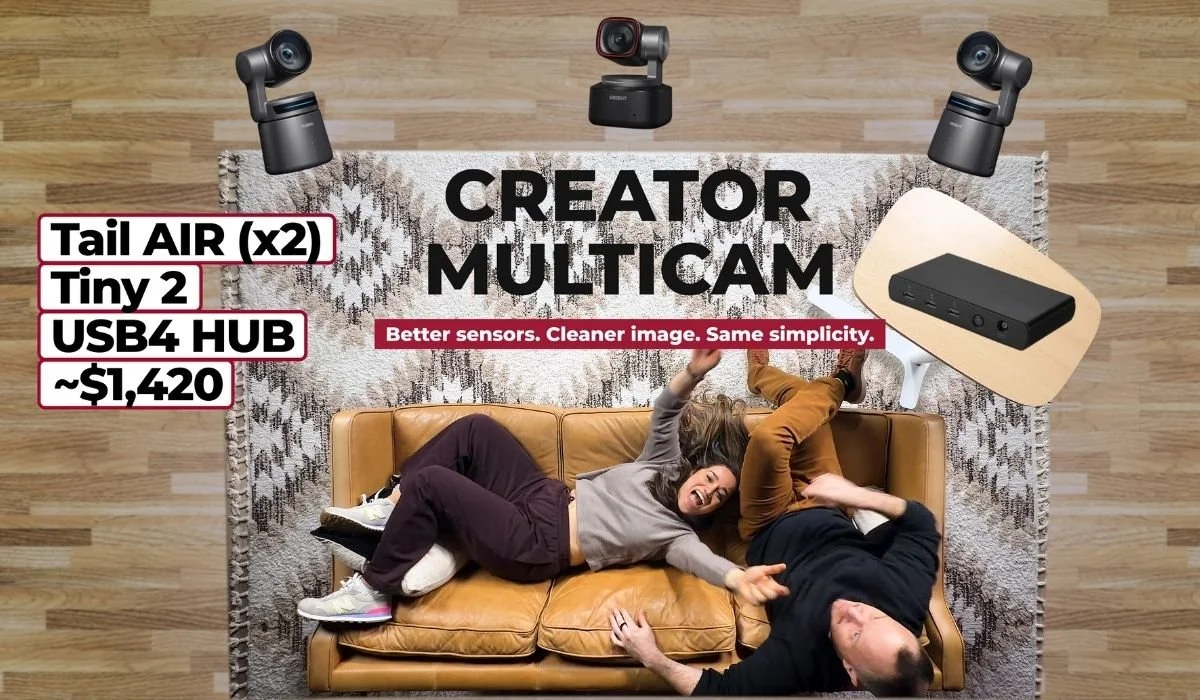
Setup 2 keeps the same core approach as Setup 1, software switching in OBS, but upgrades the camera mix for creators who want a more polished, “pro” look.
2× OBSBOT Tiny 2 (https://geni.us/mchBN)
1× OBSBOT Tail Air (https://geni.us/Km7J)
USB hub/dock (4K-capable) (https://geni.us/QGZ1Jm)
Because closeups matter most in podcasts, here are two practical configurations:
Option A (quality-first closeups)
Closeups: Tail Air + Tiny 2
Wide: Tiny 2
This prioritizes your “talking head” shots.
Option B (flexibility + wireless control angle)
Closeups: 2× Tiny 2
Wide or specialty angle: Tail Air
This can be great if you want one angle you can tweak more dynamically (Tail Air control options are a standout).
In real-world podcast lighting (which is often not perfect), the Tail Air tends to shine because it offers:
A larger sensor feel and cleaner processing
Better dynamic range in tricky rooms
PTZ control with the added benefit of wireless control via phone/tablet (a meaningful workflow upgrade)
DIY creators who still want a plug-and-play workflow
Podcasters leveling up from “good webcam” to “polished show”
Anyone who wants better closeups without buying a hardware switcher
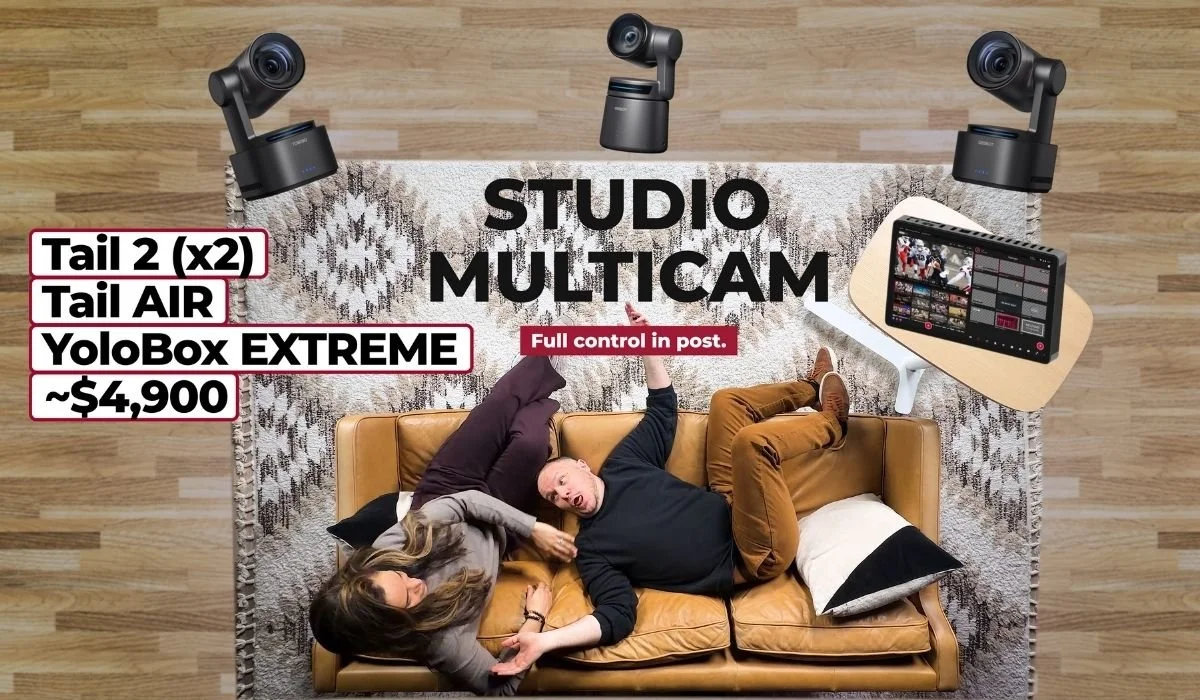
This is the setup that changes how your show scales, because you stop “baking in” creative choices live and start capturing your livestream as a production asset.
2× OBSBOT Tail 2 (https://geni.us/mBnb3Ae)
1× OBSBOT Tail Air (https://geni.us/Km7J)
4K camera switcher (https://amzn.to/4rtIcNX)
1) Tail 2 gives you true optical zoom
Optical zoom means the lens physically zooms, so you can frame tight closeups from farther away without losing image quality. It’s a big part of that “buttery,” professional look.
2) The switcher can record each camera separately in 4K (ISOs)
That’s the whole point: your editor gets:
Camera A (4K file)
Camera B (4K file)
Camera C (4K file)
Plus your audio
…so they can rebuild the show in post with full control.
3) You still livestream cleanly
You can send the switcher’s program feed into Riverside (or your streaming platform of choice), invite remote guests, share screens, etc. while your best-quality camera files record locally.
You already have an editor (or you’re ready to hire one)
You want to repurpose heavily: clips, highlights, vertical video, thumbnails
You treat livestreams as raw material for a content engine
At this level, you’re not just buying cameras, you’re buying time back.
A good editor can spend 6–12 hours/week turning one livestream into:
multiple episodes
multiple short clips
highlights
social-ready verticals
polished final exports
If you’re doing all of that yourself forever, you’re not “a creator who edits”… you’re an editor who occasionally creates.
This is the repeatable “recipe” that makes Setup 1 and Setup 2 work.
Install OBSBOT Center (for PTZ + camera settings)
Install OBS (free)
Multiple cameras share the bandwidth of a USB controller. Test the exact cameras, frame rates, formats, hub, and computer; a “4K” label on a hub does not guarantee three simultaneous 4K feeds.
In OBS settings:
Base (Canvas) Resolution: 3840×2160
Output (Scaled) Resolution: 3840×2160
These settings define the OBS canvas and output, but they cannot add detail that a source does not supply. Check each capture source and the receiving app separately.
Keep it simple:
Scene 1: Wide
Scene 2: Host closeup
Scene 3: Guest/co-host closeup
Each scene contains one “Video Capture Device” source.
In OBS hotkeys, map:
Next scene / Previous scene
to something you can do without thinking (Up/Down arrows are common).
This turns OBS into a “camera source” that other apps can use.
In Riverside:
Select OBS Virtual Camera as your camera
Now you can:
Invite remote guests
share screens
keep a clean multicam program recording
Build your wide shot so it doesn’t include your close-up cameras in the frame.
Once wide is locked, build close-ups around it.
A simple rule that works:
If the host sits on the left side of the wide shot, frame them slightly left in their closeup.
If the co-host sits on the right, frame them slightly right in their closeup.
That way, when they turn to each other, eye-lines feel natural.
If you’re new: keep cameras on auto to avoid overwhelm.
When you’re ready to level up:
Lock white balance
Lock exposure
This prevents distracting “breathing” shifts as people move.
Push white balance too warm → too cool until you find “your” look
Set exposure so faces aren’t blown out
Prefer lower ISO when you can (less noise)
If all three cameras are the same model, matching is much easier, often you can reuse the same settings.
A clean mental model:
Hardware switcher = ISO recorder + live switcher
Riverside = remote guest + clean livestream + cloud backup
So your workflow becomes:
Cameras → switcher (HDMI/USB-C depending on camera)
Switcher records each camera to fast storage (4K ISOs)
Switcher sends the live program feed into Riverside (via capture)
Riverside records guests/screen shares cleanly
Result: your editor gets the best of both worlds.
Pick based on your editing reality:
You’re doing everything yourself
You want the simplest, cheapest true multicam workflow
You’re okay with live camera switching being “baked in”
You want noticeably better closeups
You still want the simplicity of the USB + OBS workflow
You’re growing and you care about production value
You have (or want) an editor
You want to repurpose at scale
You want true post-production control via 4K ISOs
A computer-based setup with USB cameras and OBS can be a useful starting point. Practice scene switching and test bandwidth, audio routing, and the full recording before going live.
No. OBS can switch a live program without a hardware switcher. Separate camera recording can be achieved with a compatible ISO switcher, camera-internal recordings, or suitable software workflows.
ISO recording keeps each camera in a separate file so an editor can choose the shots later. It does not inherently require a hardware switcher; use a recording method that fits your cameras and edit workflow.
Yes, OBSBOT cameras are one of the best options for multicam podcast livestreaming because they connect via USB, support 4K recording, include AI tracking and PTZ controls, and are designed to work together in multi-camera setups. The OBSBOT Tiny 2, Tail Air, and Tail 2 are all covered in this guide and have been personally tested by our team.
OBS Studio handles scenes and switching, and the camera control application handles compatible camera settings. Choose a recording or streaming platform whose current plan supports your guest and output requirements.
Use USB connections that support the total camera bandwidth, and spread devices across controllers when needed. Test each feed in OBS before trusting a hub with the full show.
A program feed records the live switches into one output. ISO recordings preserve separate camera angles. The difference is what you keep for editing, not a requirement to buy one particular type of switcher.
A beginner multicam podcast setup using three OBSBOT Tiny 2 cameras and a USB hub starts around $600–$1,000. A mid-range setup adding an OBSBOT Tail Air runs $1,200–$1,800. A full pro setup with OBSBOT Tail 2 cameras, a hardware switcher, and ISO recording capability runs $4,000–$6,000 depending on configuration. All three setups are covered in detail in this guide with full gear lists and affiliate links.
You can combine live switching and recording, but check the supported destinations, resolution, and recording limits of your current platform plan. Keep a local backup and confirm it actually records what you need.