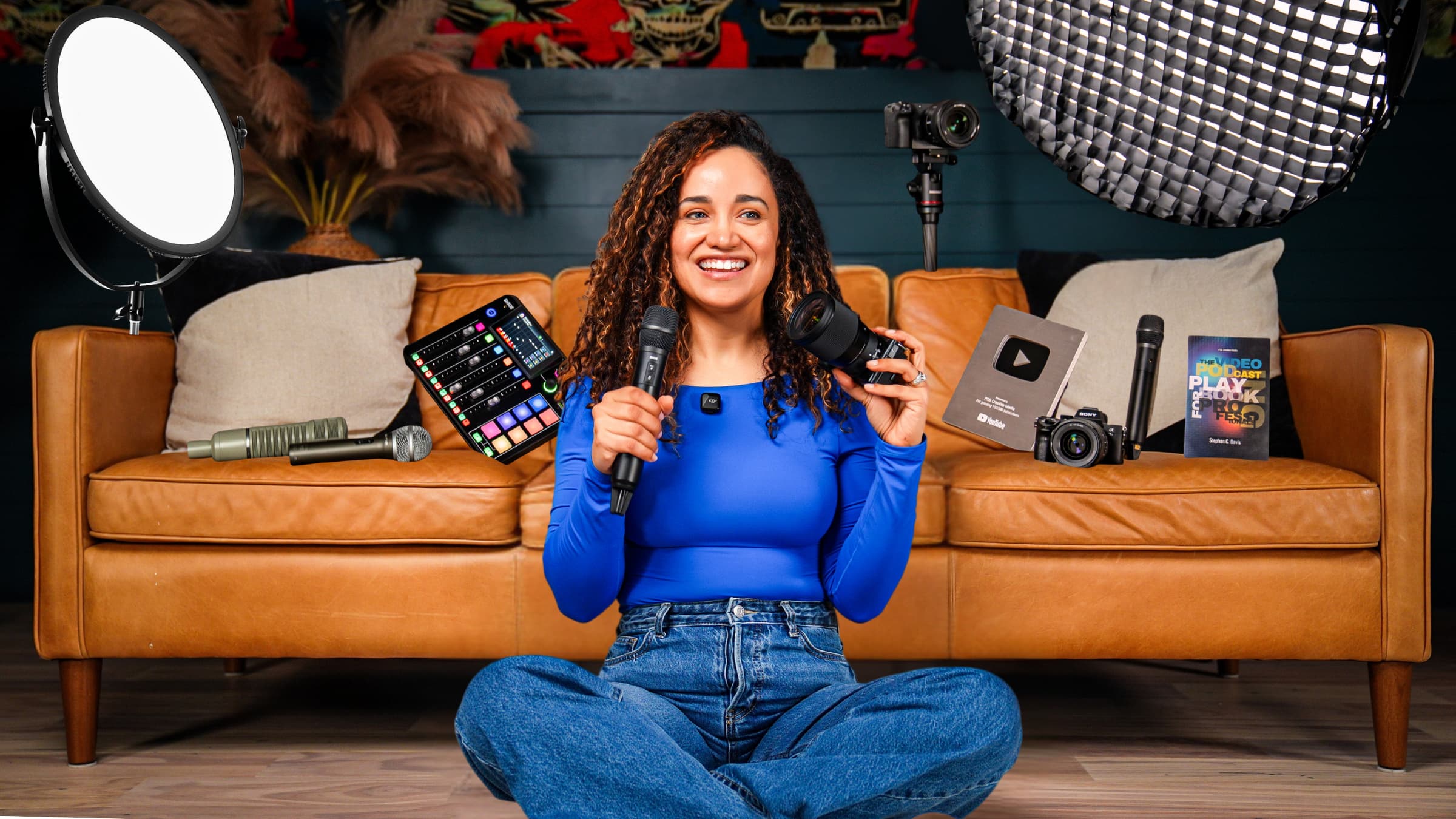
Studio builds
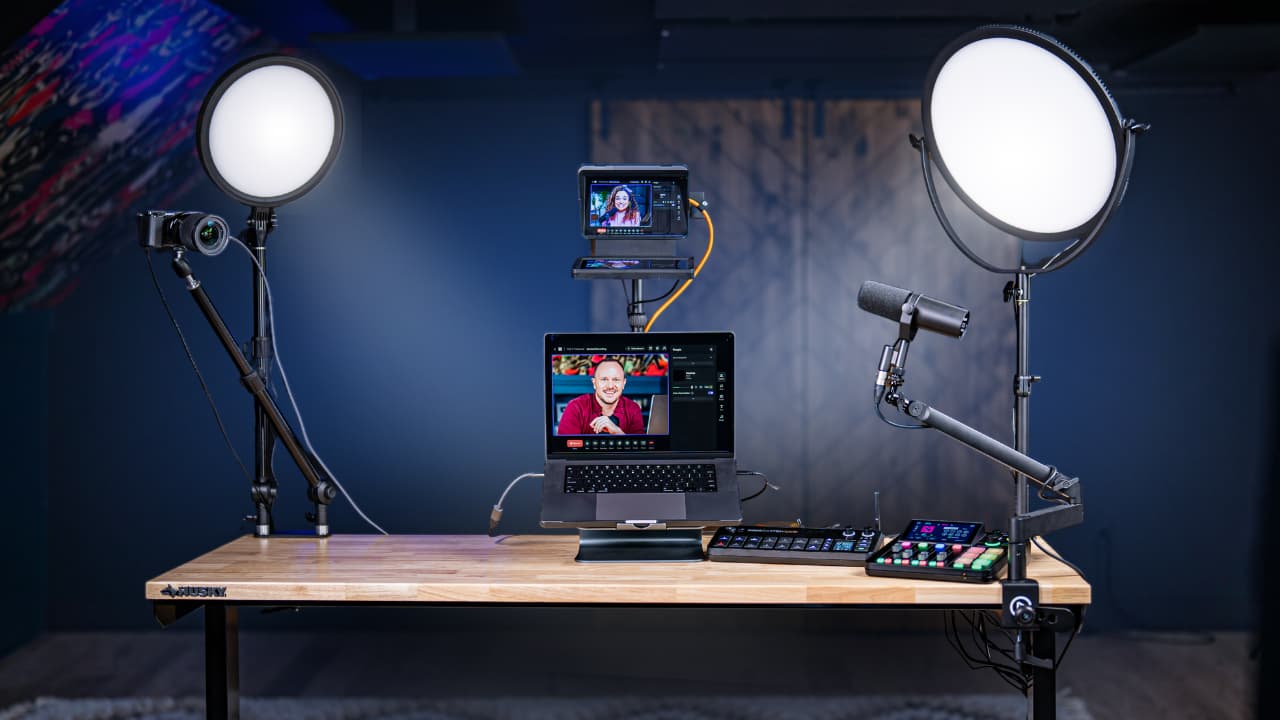
Stephen had 90 minutes to build three complete podcast livestream setups before I walked upstairs. Beginner, mid-level, and full-pro multicam, all running through Riverside.
Some links in this story are affiliate links. If you buy through them, we may earn a commission at no extra cost to you.
A solo setup keeps the camera and audio path simple.
A screen-share setup adds the material you want to demonstrate.
A multicamera setup needs a plan for switching, separate recordings, and the edit afterward.
| Version | Add to the basic setup | Practice |
|---|---|---|
| Solo streamer | One camera and a clear voice | Going live and monitoring |
| Screen-share show | Presentation or demonstration source | Switching between face and screen |
| Multicam show | Several angles and a recording plan | Switching, matching, and edit handoff |
Watch the full video: https://youtu.be/gsYS4RtxEos
Let me tell you about the morning Stephen lost his mind in the best possible way.
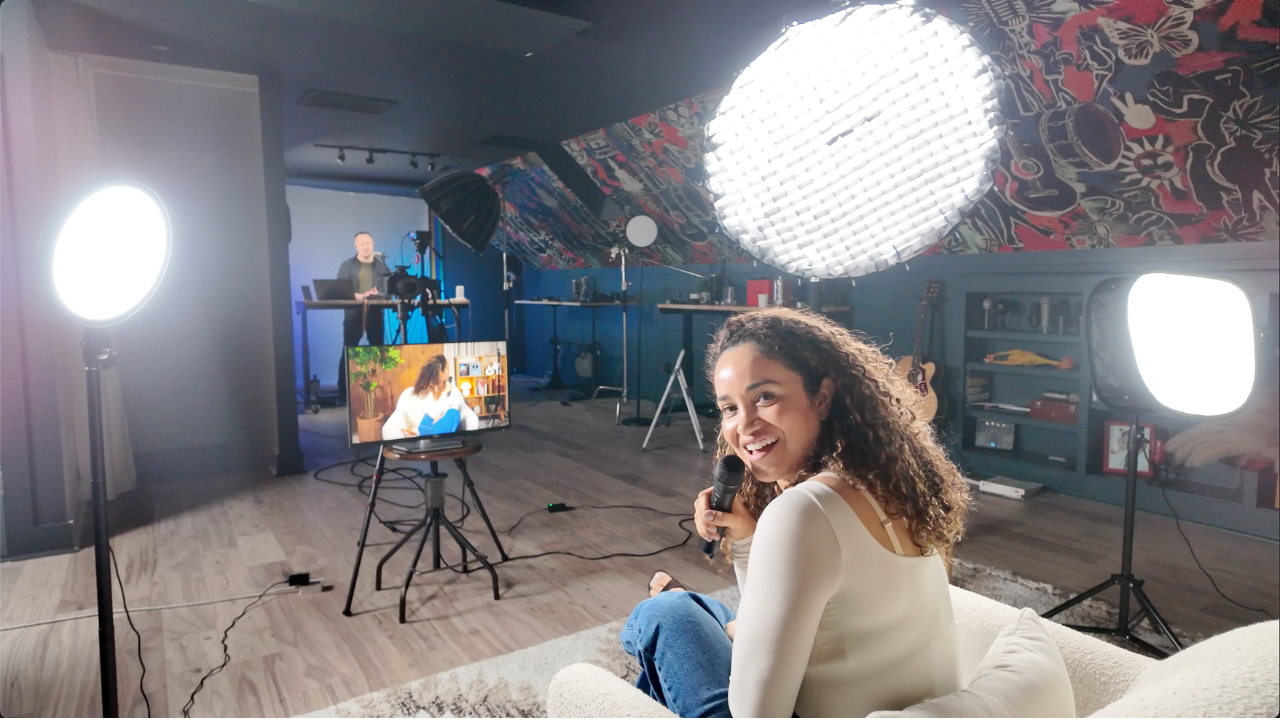
I walked into our studio upstairs to find him surrounded by cameras, cables, lights he'd custom-flagged with gaffer tape, and a shelf he'd apparently assembled the day before without telling me. He had exactly 90 minutes to build three completely different podcast livestream setups beginner, mid-level, and full pro multicam before I came up to go live on each one.
Reader, he did it. Barely. But he did it.
And in the process, we documented everything so you don't have to figure this out on your own. Because if you've been sitting on the sidelines of livestreaming watching everyone else go live and wondering when it's going to be your turn this is the post that ends that spiral.
Here are three complete podcast live stream setups, broken down by budget and skill level, plus the Riverside workflow that ties all three together. Let's go.
Over a billion people watch podcasts on YouTube every month. Spotify is doubling down on video. Netflix is watching. And somewhere in the middle of all of that, your audience is sitting there, waiting for you to show up live.
Real-time connection with your audience (Q&A, live comments, the energy of showing up together)
Built-in accountability — you're going live, so you're going
A content flywheel: one livestream becomes a YouTube video, a short clip series, and social content — all from one session
And here's the part nobody talks about enough: going live gets easier every time you do it. The first one is terrifying. The fifth one feels like talking to a friend. The twentieth one, you're wondering why you waited so long.
The barrier isn't your confidence. It's your setup. So let's fix that.
These are the exact three setups Stephen built in 90 minutes, all running through Riverside as the command center. Each one is designed for a different budget and a different stage of your podcasting journey.
This is the setup that removes every excuse. You don't need a fancy camera. You don't need a lighting rig. You need a clean background, decent audio, and the nerve to press go live.
What Stephen used:
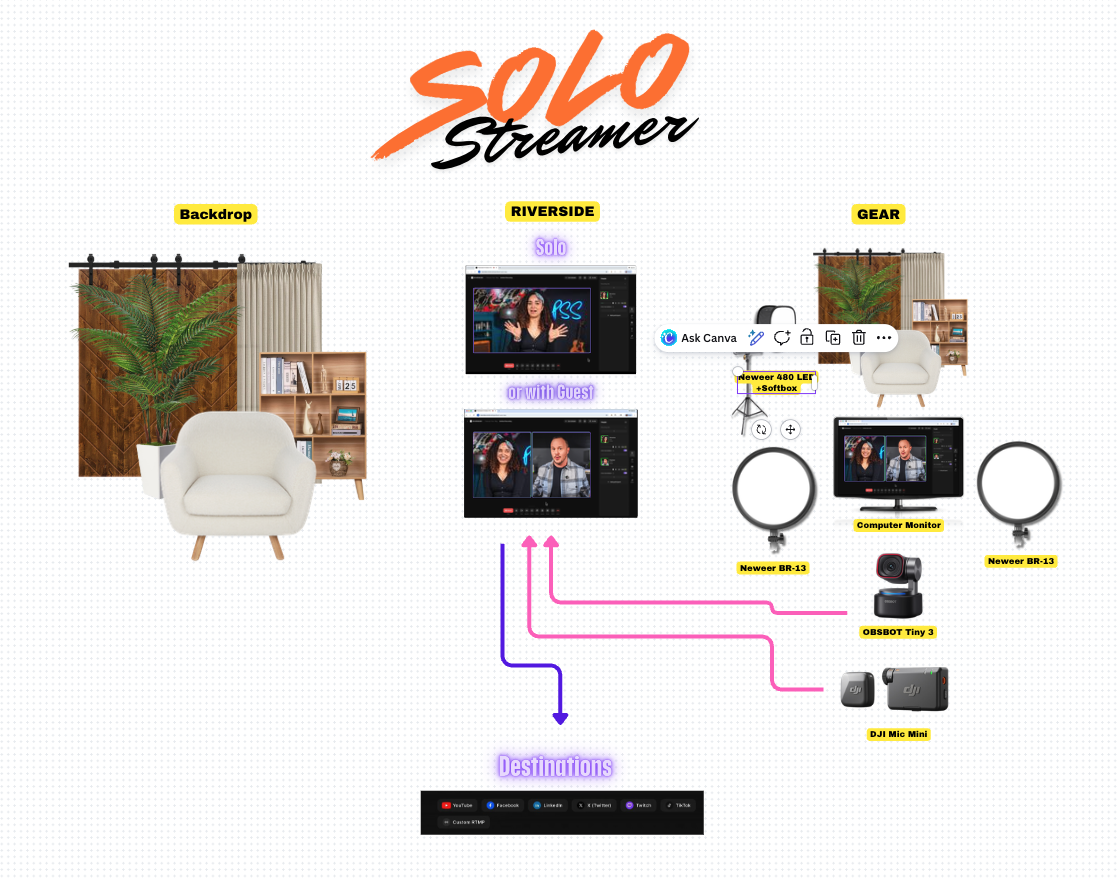
Camera: OBSBOT Tiny 3. Our personal favorite webcam right now. True 4K, AI tracking, incredibly clean image. It plugs straight into Riverside and records at full quality without any fuss.
Lights: Two BBR 13 panel lights + a 480 LED panel with softbox for background fill
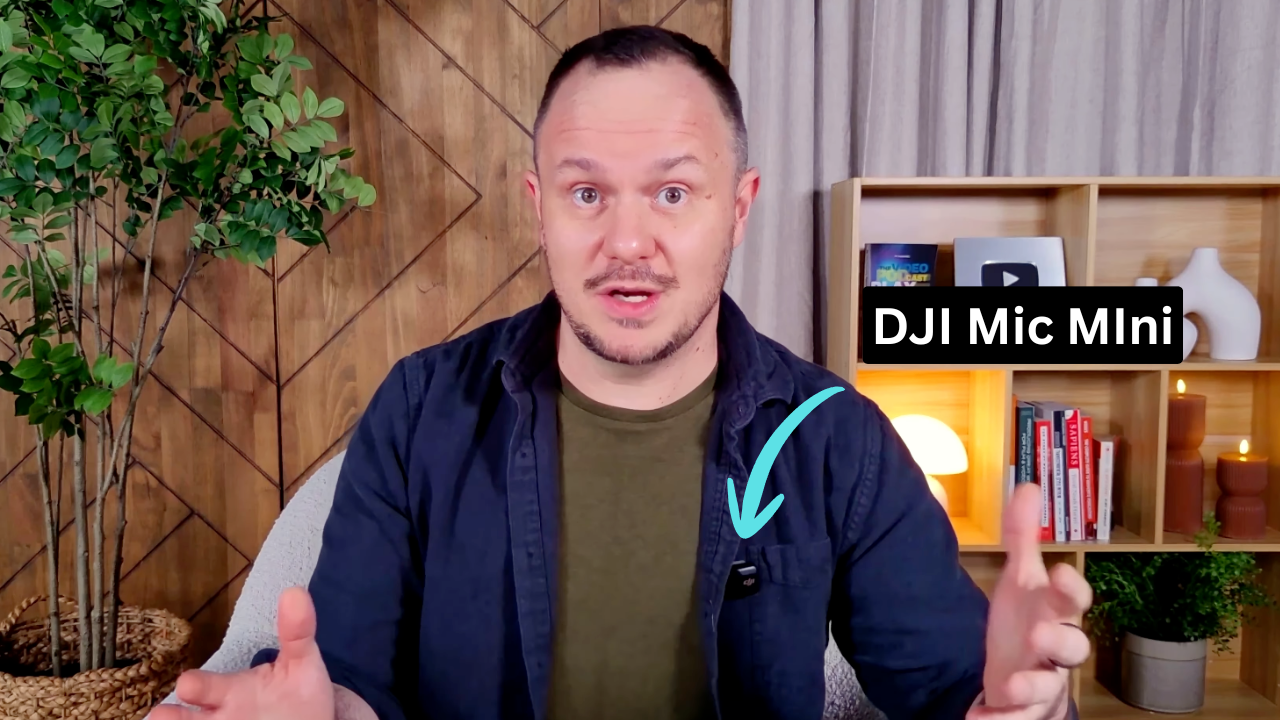
Audio: DJI Mic Mini. Clip-on, plug-and-play, magnetic clip, sounds way better than it has any right to at that price
Backdrop: Shelf setup with LED accent lights (links in the YouTube video comment GO LIVE and we'll send the full list)
What Riverside does in this setup: You connect the OBSBOT directly into Riverside, record at 4K locally, and stream to up to four platforms simultaneously YouTube, Facebook, LinkedIn, and X all at once. You can host up to six remote guests and every single one records their own separate 4K file. Which is wild.
| Category | Gear | Link |
|---|---|---|
| Camera | Webcam (OBSBOT Tiny 3) | → Get it |
| Audio | Microphone (DJI Mic Mini) | → Get it |
| Lighting | Neewer Round Lights x2 | → Get it |
| Lighting | Neewer Backdrop Light | → Get it |
| Lighting | Softbox | → Get it |
| Backdrop | Bookshelf | → Get it |
| Backdrop | Shelf Light | → Get it |
| Backdrop | White Vase | → Get it |
| Backdrop | Candles | → Get it |
| Backdrop | Monitor | → Get it |
| Backdrop | Curtains | → Get it |
| Backdrop | Faux Plant | → Get it |
| Backdrop | White Chair | → Get it |
| Backdrop | Side Table for Laptop | → Get it |
| Platform | Riverside (use code PSS for 15% off) | → Try free |
💡 Pro Tip
After your livestream ends, set the YouTube version to private. Jump into Riverside's editor and use the AI tools to remove filler words, clean up your audio with Magic Audio, and trim the beginning and end. Then re-upload that polished version as a standalone video. You go live for the connection. You upload the edit for the long-term views. Two birds.
This one is for the creator who wants to do a little more — share their screen, react to something with a co-host, teach something live, or even game stream on the side. (Stephen may have gotten a little too excited about this part.)
What Stephen used:
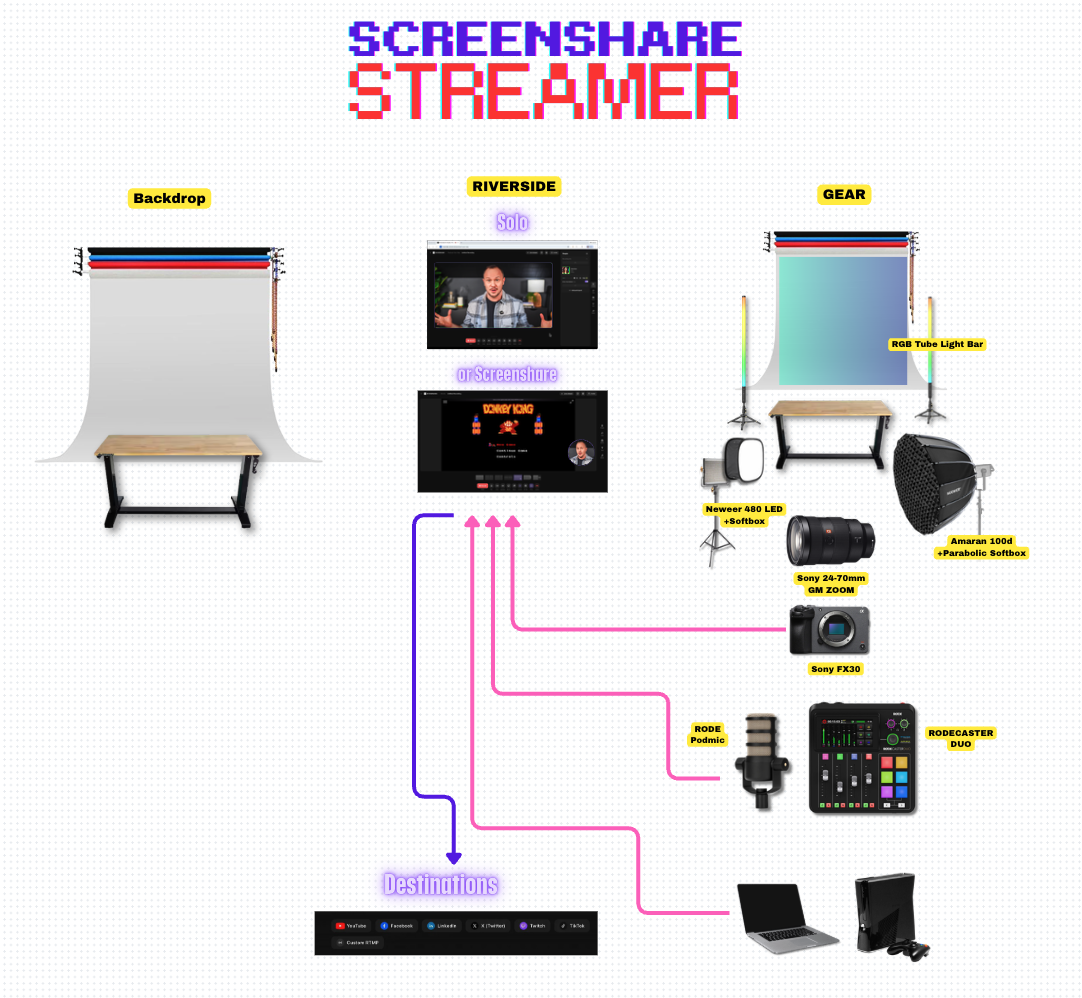
Backdrop: Paper roll backdrop in gray with DIY tube lights on either side (~$80 for a set of two). Stephen built custom black flags with gaffer tape to control the light spill. He was unreasonably proud of them.
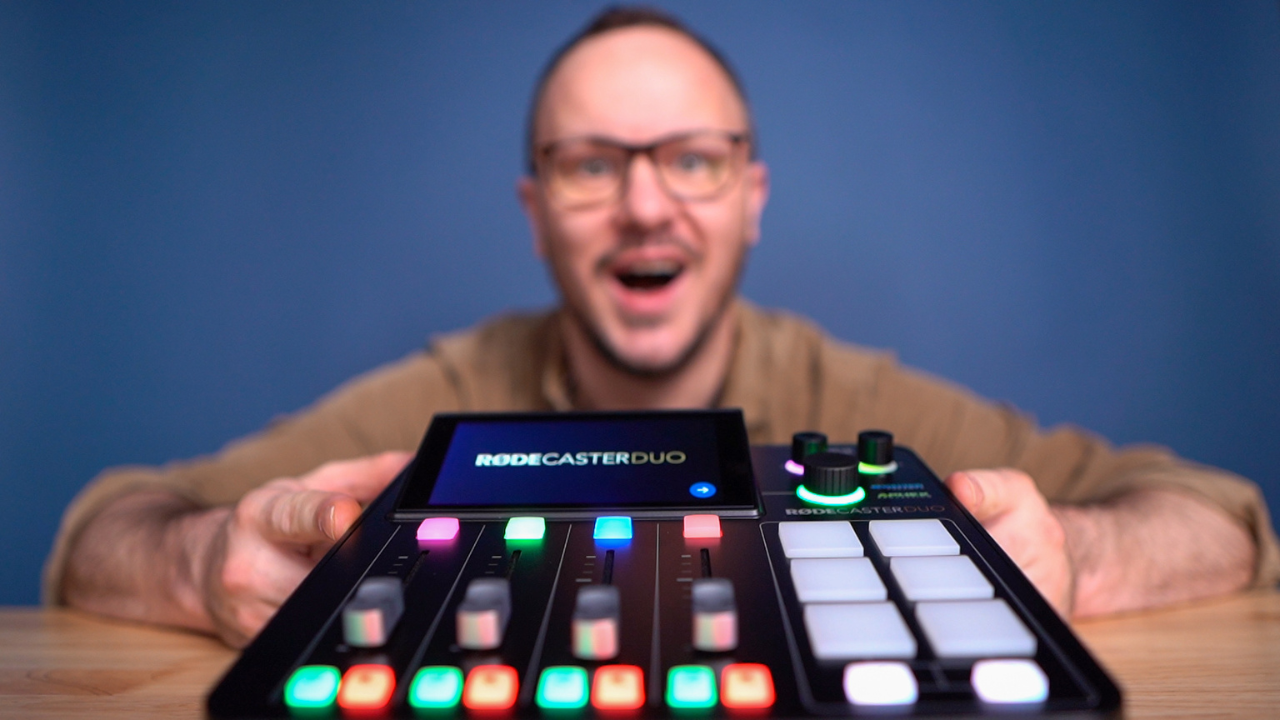
Bonus: The RØDECaster Duo has built-in sound effects, voice effects, and the ability to mix music into your live stream. There is a chicken sound effect. We're not sorry.
| Category | Gear | Link |
|---|---|---|
| Camera | Sony Camera | → Get it |
| Camera | Zoom Lens | → Get it |
| Camera | Tripod | → Get it |
| Audio | Rodecaster Duo | → Get it |
| Audio | Rode Podmic | → Get it |
| Lighting | Amran Studio Light | → Get it |
| Lighting | Parabolic Softbox | → Get it |
| Lighting | C-Stand | → Get it |
| Lighting | Neewer Panel Light | → Get it |
| Backdrop | Desk | → Get it |
| Backdrop | Roller Wall Mounting System | → Get it |
| Backdrop | Photography Paper | → Get it |
| Backdrop | Backdrop Lights | → Get it |
| Platform | Riverside (use code PSS for 15% off) | → Try free |
What Riverside adds: Your screen share is recorded as a separate 4K file alongside your camera feed. This makes post-production editing actually manageable instead of a nightmare. And you can still stream to all four platforms at once.
This is the setup we use for our full production shows. Two cameras, two hosts, camera switching happening live, 4K the whole way through. It looks like a TV show because it kind of is.
What Stephen built:
Camera A (Stephen): Sony FX30 + G Master zoom — same as setup 2
Camera B (Veronica): Sony A7 IV + G Master 35mm lens — shallow depth of field, gorgeous face focus, that blurry background everyone loves
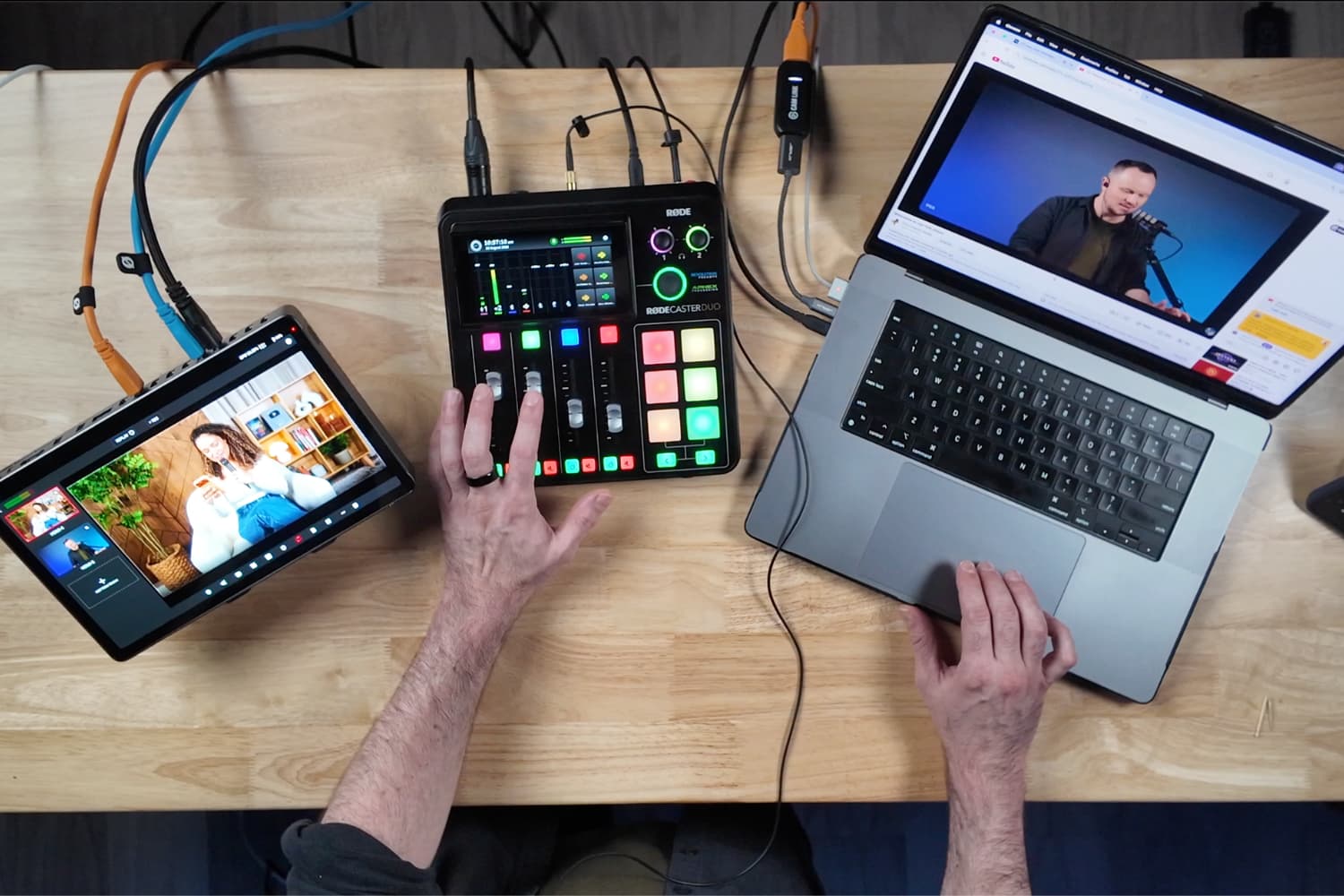
Audio: RØDE Interview PRO wireless mics syncing directly to the RØDECaster Duo (no receiver needed — the Duo has it built in)
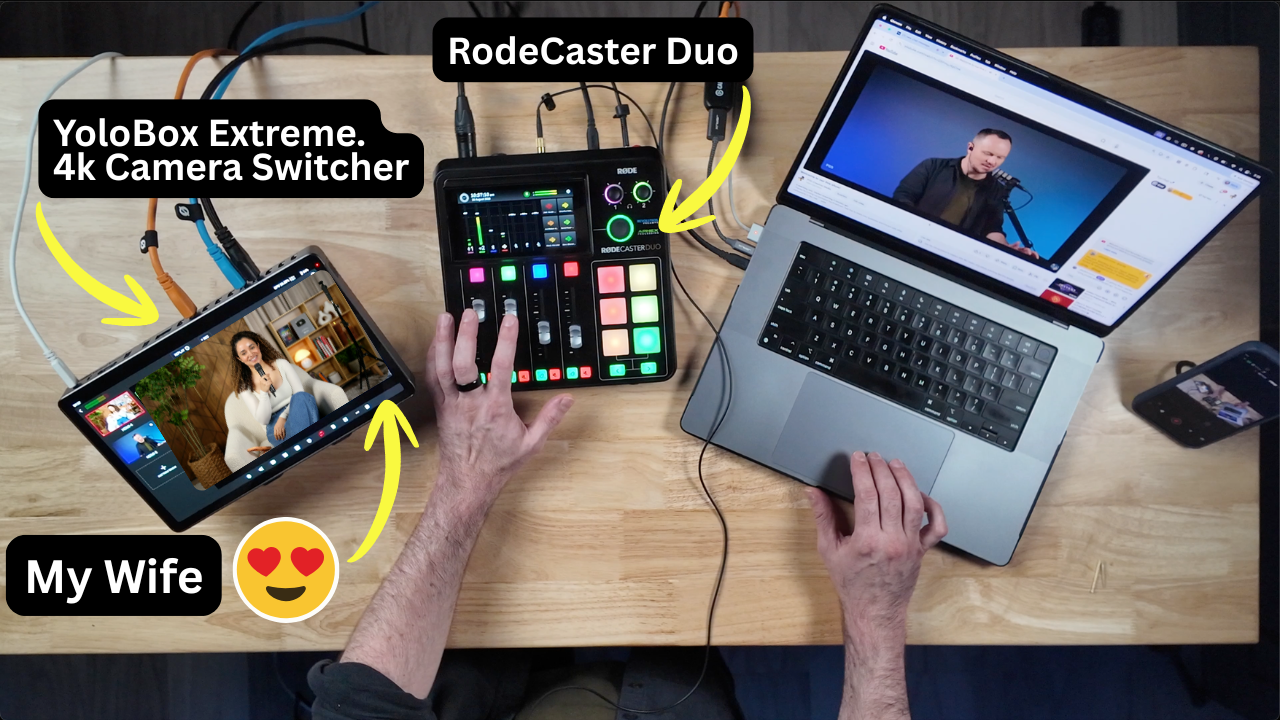
The secret weapon: YoloBox Extreme — a 4K camera switcher that lets you cut between cameras live, outputs 4K HDMI directly into your computer, and can record each camera input separately onto a flash drive
| Category | Gear | Link |
|---|---|---|
| Camera A | Sony Camera (FX30) | → Get it |
| Camera A | Zoom Lens | → Get it |
| Camera B | Sony Camera (A7 IV) | → Get it |
| Camera B | 35mm Lens | → Get it |
| Camera | Tripod | → Get it |
| Audio | Rode Microphone | → Get it |
| Audio | Rodecaster Duo | → Get it |
| Lighting | Amaran Studio Light | → Get it |
| Lighting | Parabolic Softbox | → Get it |
| Lighting | C-Stand | → Get it |
| Lighting | Neewer Backdrop Light | → Get it |
| Lighting | Softbox | → Get it |
| Multicam | 4K Live Stream Switcher (YoloBox Extreme) | → Get it |
| Backdrop | Desk | → Get it |
| Backdrop | Roller Wall Mounting System | → Get it |
| Backdrop | Photography Paper | → Get it |
| Backdrop | Backdrop Lights | → Get it |
| Platform | Riverside (use code PSS for 15% off) | → Try free |
Why the YoloBox changes everything: Instead of recording multiple camera files and syncing them in post, the YoloBox does your camera switching live. You feed one clean, switched 4K signal into Riverside. Your edit is basically done before you even end the stream.
The switched program can go to the streaming platform while compatible local recordings preserve options for the edit. Confirm the actual input, output, and recorded resolution at each stage.
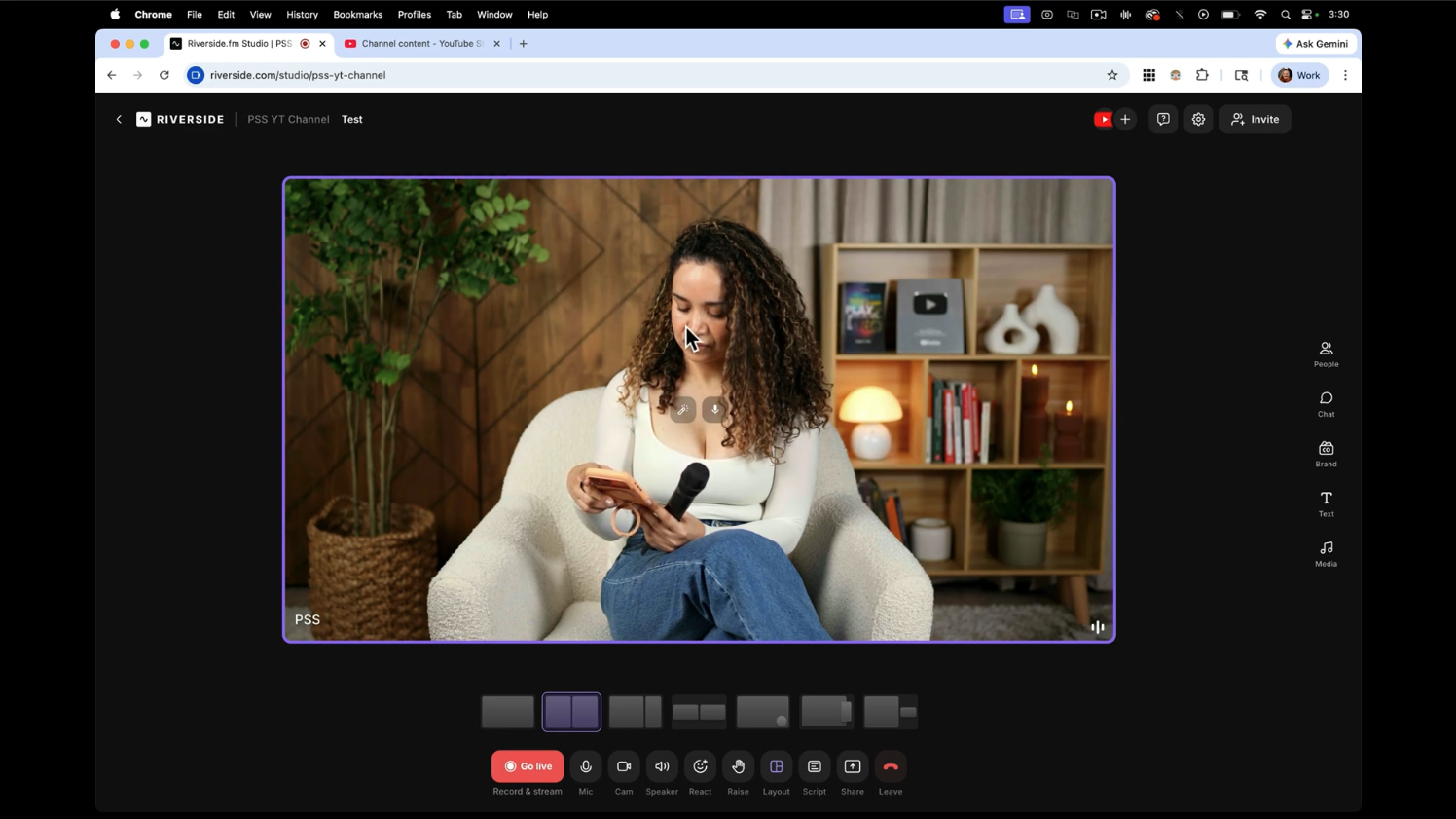
All three of these setups run through Riverside — and that's not just because they sponsored this video. It's because Riverside genuinely solves the biggest problem creators have with livestreaming: what do you do with the footage after?
Here's the workflow we use and recommend:
Go live. Stream to your platforms. Be present with your audience.
After the stream, set your YouTube live video to private.
Inside Riverside, open your recording. Use Magic Audio to clean up your sound. Use 'Remove Filler Words' and 'Remove Pauses' to tighten the edit.
Export the cleaned version as a standalone video and upload it to YouTube as a regular video — not a live stream replay.
Use Riverside's Magic Clips to pull 5–10 short clips for social media.
One session. Five to ten pieces of content. That's the math that makes this sustainable.
Explore Riverside and check the current plan features and pricing for your workflow.
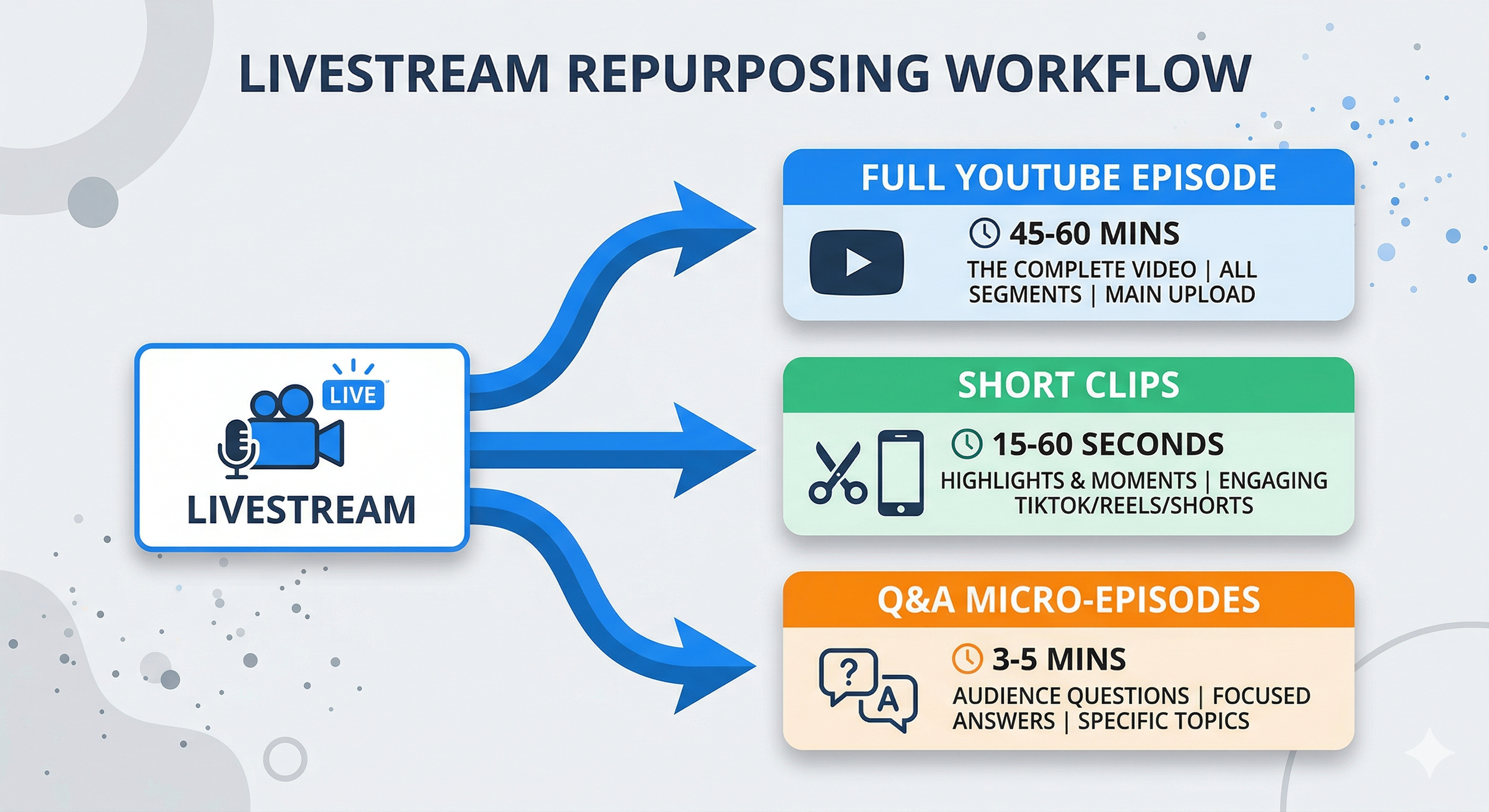
Let's be specific about this because 'repurpose your content' is one of those pieces of advice that sounds great and means nothing without a plan.
Here's exactly what you pull from one livestream:
The full polished episode: Clean up the stream with Riverside AI, re-upload as a standalone YouTube video. This is the long-form content that builds your search presence over time.
Short clips for social: Let Riverside's Magic Clips do the first pass. Pick 3–5 that work as standalone moments. These go to Instagram Reels, YouTube Shorts, and TikTok.
Q&A segments as micro-episodes: If you did a Q&A during the live, those segments can become individual short-form episodes or bonus content for your email list.
The goal isn't to squeeze every drop out of one piece of content until it's exhausted. It's to let one genuine, live conversation become the source material for everything else.
A webcam, a suitable microphone, controlled front lighting, and a streaming platform can be a manageable first setup. Price the whole kit and subscription rather than relying on a fixed total.
Yes — Riverside lets you stream to YouTube, Facebook, LinkedIn, and X simultaneously from any of the three setups described in this post. You set up your stream destinations once inside Riverside and go live to all of them with one click.
Three things make the biggest difference: good front lighting (a softbox panel pointed at your face), a clean or intentional background, and a microphone that isn't your laptop. The OBSBOT Tiny 3 and DJI Mic Mini combination from Setup 1 will make your livestream look and sound significantly more professional than most of what's already out there.
The pro build uses dedicated cameras, a switcher, wireless microphones, audio control, and COB lighting. Price your exact configuration. These equipment examples are separate from our private studio projects, which begin at $5,000.
Riverside is our go-to recommendation for podcast livestreaming because it solves both sides of the problem: the live experience (multi-platform streaming, remote guests, 4K recording) and the post-production workflow (AI editing tools, filler word removal, magic audio, automatic clip generation). It's the platform that makes going live sustainable, not just possible.
Here's the honest version of that answer:
If you've never gone live before: Start with Setup 1. The OBSBOT Tiny 3 and DJI Mic Mini will not embarrass you. I promise. Go live before you feel ready.
If you want to level up your production or add a screen share: Setup 2. The Sony FX30 and RØDECaster Duo are a massive upgrade without requiring you to hire a crew.
If you're ready to run a real show with co-hosts, guests, and a production workflow: Setup 3. The YoloBox + Riverside combination will save you hours every single week.
Whatever stage you're at — start there. Not where you hope to be in a year. Not where you think you should be. Where you are right now.
The most important livestream you'll ever do is the first one. Everything else gets easier from there.
Watch the full build video above to see all three setups in action, including Stephen's 90-minute race against the clock and the moment Veronica walked upstairs to review everything he'd built.
Comment GO LIVE on the YouTube video and we'll send you the complete gear list for all three setups — every camera, light, mic, cable, and piece of gear featured.
Explore Podcast YourWay Producer for the next step with your show.
Promised you the links. Here they are. Every piece of gear Stephen used in this build, organized by setup.
| Category | Gear | Link |
|---|---|---|
| Camera | Webcam (OBSBOT Tiny 3) | → Get it |
| Audio | Microphone (DJI Mic Mini) | → Get it |
| Lighting | Neewer Round Lights x2 | → Get it |
| Lighting | Neewer Backdrop Light | → Get it |
| Lighting | Softbox | → Get it |
| Backdrop | Bookshelf | → Get it |
| Backdrop | Shelf Light | → Get it |
| Backdrop | White Vase | → Get it |
| Backdrop | Candles | → Get it |
| Backdrop | Monitor | → Get it |
| Backdrop | Curtains | → Get it |
| Backdrop | Faux Plant | → Get it |
| Backdrop | White Chair | → Get it |
| Backdrop | Side Table for Laptop | → Get it |
| Platform | Riverside (code PSS for 15% off) | → Try free |
| Category | Gear | Link |
|---|---|---|
| Camera | Sony Camera (FX30) | → Get it |
| Camera | Zoom Lens | → Get it |
| Camera | Tripod | → Get it |
| Audio | Rodecaster Duo | → Get it |
| Audio | Rode Podmic | → Get it |
| Lighting | Amran Studio Light | → Get it |
| Lighting | Parabolic Softbox | → Get it |
| Lighting | C-Stand | → Get it |
| Lighting | Neewer Panel Light | → Get it |
| Backdrop | Desk | → Get it |
| Backdrop | Roller Wall Mounting System | → Get it |
| Backdrop | Photography Paper | → Get it |
| Backdrop | Backdrop Lights | → Get it |
| Platform | Riverside (code PSS for 15% off) | → Try free |
| Category | Gear | Link |
|---|---|---|
| Camera A | Sony Camera (FX30) | → Get it |
| Camera A | Zoom Lens | → Get it |
| Camera B | Sony Camera (A7 IV) | → Get it |
| Camera B | 35mm Lens | → Get it |
| Camera | Tripod | → Get it |
| Audio | Rode Microphone | → Get it |
| Audio | Rodecaster Duo | → Get it |
| Lighting | Amran Studio Light | → Get it |
| Lighting | Parabolic Softbox | → Get it |
| Lighting | C-Stand | → Get it |
| Lighting | Neewer Backdrop Light | → Get it |
| Lighting | Softbox | → Get it |
| Multicam | 4K Live Stream Switcher (YoloBox Extreme) | → Get it |
| Backdrop | Desk | → Get it |
| Backdrop | Roller Wall Mounting System | → Get it |
| Backdrop | Photography Paper | → Get it |
| Backdrop | Backdrop Lights | → Get it |
| Platform | Riverside (code PSS for 15% off) | → Try free |